| Top of Proposals | Index | Table of Contents | Feedback | |
PAAW1100 - Maintain Proposal - New for Release 12.0.0.2
This page can be reached via the My Proposal or the Create Proposal pages.
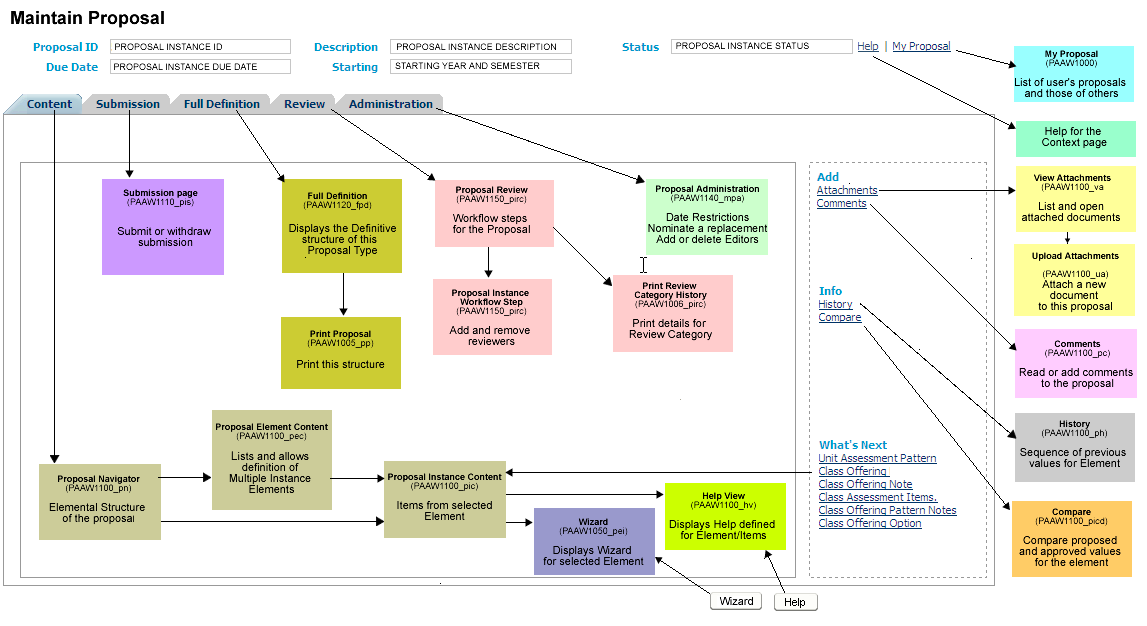
See diagram below for a map of the areas in the Maintain Proposal Screen
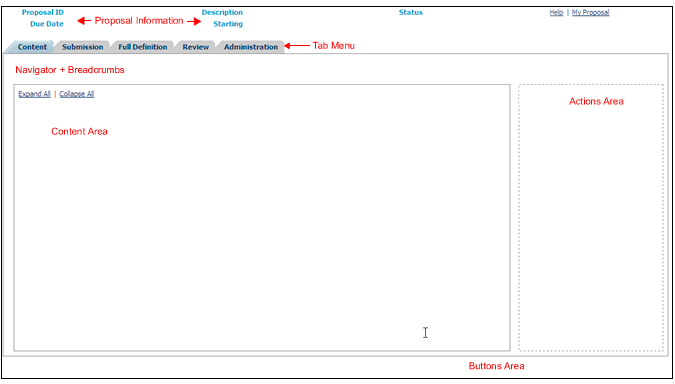
The Maintain Proposal Instance pages are used to create and review a Proposal.
The pages contain the detail of the Proposal including Comments and History.
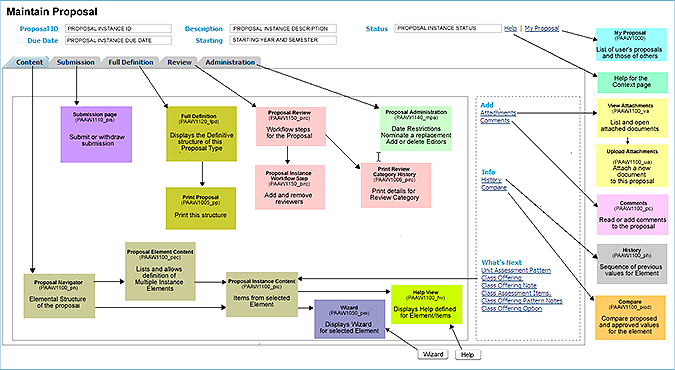
To display a larger version of the diagram above, click on My Proposal Overview Picture.
The following form the header details for the Maintain Proposal Instance page.
| Proposal ID: | Proposal ID (PROPOSAL_INSTANCE.PROPOSAL_ID) |
| Description: | Description of the proposal (PROPOSAL_INSTANCE.DESCRIPTION) |
| Status: | Status of the proposal (PROPOSAL_INSTANCE.S_PROPOSAL_INSTANCE_STATUS) |
| Due Date: | Override due date if recorded in otherwise Due Date. (PROPOSAL_INSTANCE.OVERRIDE_DUE_DT or PROPOSAL_INSTANCE.DUE_DT ) |
| Proposal Start Year: | Year and teaching period when this will first be offered. (CAL_INSTANCE.ALTERNATE_CD for Academic calendar and also for teaching period) |
On the My Proposal page click on the My Proposal link to go to the My Proposal page.
Content tab
This tab displays a summary of the content of the proposal in an expandable tree form. Available to all users . Details are described in Proposal Navigator help page.
Submission tab
This tab allows you to submit or withdraw the proposal. Only available if you are a Proposer or Editor. Details are described in Submission help page.
Full Definition tab
This tab displays the full definition of the proposal as defined for the Definitive proposal in PAAW0200. Details are described in Maintain Proposal Definition help page.
Review tab
This tab allows the user to view the Review category for this proposal. This includes the Workflow Steps,etc. Details are described in Maintain Review Category help page.
Administration tab
This tab allows the user to edit some proposal details, delegate the proposal to another person and change the editors. Details are described in Maintain Proposal Administration help page.
The Attachments link displays the View Attachments page.(This link only displays if a Document Type has been related to the context element in PAAW0200.)
The Comments
link displays the Proposal Comments page
The Wizard
link displays the Proposal Wizard page.
The Compare link displays the Compare Definition page.
The What's Next links allow the user to navigate their way through the proposal.
Who will use the Maintain Proposal pages?
Security for Proposal Updates
If an item has 'Allow Update When' value = NEVER in the Maintain Element Proposal Item page, then it can never be updated irrespective of the user. This is to protect individual data items such as Unit Code, from being altered when it is not appropriate.
Pre-Submit
Before submission (i.e. No submission date recorded), only the proposer or an editor is able to update the Proposal.
In Review
After submission, only active BAP members for a current workflow step (Status = PENDING or MORE INFO REQ) are able to update the proposal.
In Review – Require More Information
After submission, if an element has a Comment with the More Information Required indicator selected in Proposal Comments , then only the proposal's proposer or editors are able to update the the context Element and upload Documents.
Administrator
A user is an administrator if:
An administrator can update a submitted Proposal instance once the submit_dt is not null and the workflow_instance has an s_workflow_instance_status of ‘COMPLETE’.
Other Users
In all other instances and for all other users the Proposal will be read only, once the submit date is recorded. Draft proposals are only available to the Proposer and Editors.
Last modified on 28 October, 2009 5:51 PM
History Information
| Release Version | Project | Change to Document |
| 12.0.0.2 | 1574 - CAPS - Pt 2 | New page |