
| Top of RES | Index | Table of Contents | Feedback | |
Research Candidature records are created in RESF3211 as child records of Student Course Attempts which have a Research Component..
This page displays information relating to Research Candidature.
Further information about Research Students can be found in these Online Help pages:
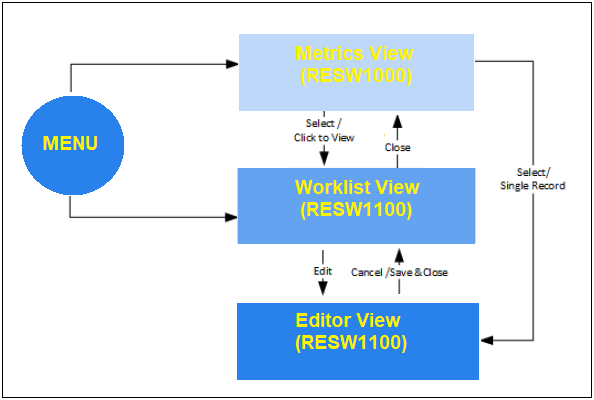
The Research Candidature (Administrative View) page can be reached by the following means:
A. Directly from the Callista ADF menu.
Research candidature records can be filtered and the results are displayed as a table of Research Candidature records.
B. Via searches or selections made in RESW1000, in which case it displays a set Research Candidature records as selected or searched for in that page.
i.e. Sets of records can be returned as filtered by:
The Edit Candidature page is opened when the Edit link is clicked for a record displayed in the Administrative View.
The Research Candidature columns that are available for display in RESW1100 are shown below:
| Column Heading | Description |
|---|---|
| Person ID | Person ID of the student PERSON.PERSON_ID |
| Name | The surname, title and given names of the student. e.g. BROWN, MR BARRY PERSON.SURNAME, PERSON_TITLE+PERSON.GIVEN_NAMES |
| Course Version | Course Code and Version of the Student Course Attempt COURSE_VERSION.COURSE_CD+.+COURSE_VERSION.VERSION_NUMBER |
| Expected Submission Date | The expected date of submission recorded for the student's thesis. THESIS.EXPECTED_SUBMISSION_DATE |
| Thesis Status | The Status value is System derived and cannot be altered. Changes to the Status are triggered by thesis submission or entry of thesis exam results in RESF3700. THESIS_V.THESIS_STATUS |
| Thesis Title | The title describes the research and should give a good idea of what the thesis is about. It is more specific than the Thesis Topic. THESIS_V.TITLE |
| Course Commencement Date | Commencement Date for the Student Course Attempt for which this candidature exists. STUDENT_COURSE_ATTEMPT.COMMENCEMENT_DT |
| Research Commencement Date | This is the date the candidate commences their research and can be on or after the Course Comm Date. This date is used in attendance and submission date calculations and in EFTSL calculations. If a Research Comm Date is not recorded, research is considered to commence on the Course Comm Date. CANDIDATURE_V.RESEARCH_COMMENCEMENT_DT |
| EFTD Used | Effective Full-Time Days (EFTD) is a means of assisting a candidate in monitoring their progress, establishing minimum and maximum dates for Thesis submission and in calculating the EFTSL a candidate's Research Studies contribute to their total EFTSL for any given Load Calendar. Refer to Research - Special Topics for further information. Derived value |
| EFTD Total | The formula used to calculate the total days available for the candidature is:
(Standard FT Completion Time value/10) * 365.
Refer to Research - Special Topics for further information. Derived value |
| Supervisor Name | Name of the student's research supervisor. Where more than one supervisor exists 'Multiple' is displayed. RESEARCH_SUPERVISOR_V.CONTEXT_BLOCK_NAME |
| Supervision Org Unit (Code) | This field describes the organisational unit code for whom the supervisor is working when performing the supervision. Where more than one supervisor exists 'Multiple' is displayed. RESEARCH_SUPERVISOR_V.ORG_UNIT_CD |
| Supervisor Person ID | The Person ID of the Supervisor. Where more than one supervisor exists 'Multiple' is displayed. RESEARCH_SUPERVISOR_V.PERSON_ID |
| Min Submission Date | Earliest submission date for the student's thesis. CANDIDATURE.MIN_SUBMISSION_DT |
| Max Submission Date | Latest submission date for the student's thesis. CANDIDATURE.MAX_SUBMISSION_DT |
| Attendance Percentage | Derived Attendance Percentage CANDIDATURE_V.DER_ATTENDANCE_PERCENTAGE |
| Supervision Org Unit (Description) | The Organisational Unit of the Supervisor. Where more than one supervisor exists 'Multiple' is displayed. ORG_UNIT.DESCRIPTION for RESEARCH_SUPERVISOR_V.ORG_UNIT_CD |
| Supervision Percentage | Percentage of the Supervisor. Where more than one supervisor exists 'Multiple' is displayed. RESEARCH_SUPERVISOR_V.SUPERVISION_PERCENTAGE |
| Supervisor Type | Type of Research Supervisor. These values are defined in RESF3122. RESEARCH_SUPERVISOR_V.RESEARCH_SUPERVISOR_TYPE |
| Milestone Status | The status of the milestone. e.g. Planned, Achieved, Moved. MILESTONE.MILESTONE_STATUS |
| Milestone Type | The type of Milestone. These are defined in RESF3110. MILESTONE. MILESTONE_TYPE |
| Milestone Description | The description of the Milestone Type as defined in RESF3110. MILESTONE_TYPE.DESCRIPTION |
| Milestone Due Date | The date on which the milestone is due to be achieved. MILESTONE.DUE_DT |
| Milestone Date Reached | The date on which the milestone was completed, whether successfully or unsuccessfully. MILESTONE.ACTUAL_REACHED_DT |
When this page is opened by a user, the array of columns displayed will be retained from their previous session. Note that this feature can be turned off by your institution, so check with your system administrator if this does not occur.
Rearranging the Display of Columns
In the Research Candidature (Administrative View) screen, users can reorder the columns via the View menu or by simply dragging a column to a new position.
Note that if the Edit column is moved from the first position, then all the columns that are to the left of it will be frozen.
They can also change which columns are displayed using the View menu.
A lamp tells how many of the columns in the table are not displayed (hidden).
Using the View Menu to Manage the Columns Displayed
Sorting the Records
The sort order of the Research Records can be changed by clicking on the sort icons in the heading for a column, however if there is a large number of records displayed, it is recommended that you filter the records beforehand.
More complex multi-column sorting can be achieved by clicking on the View Menu and selecting the Sort and Advanced options.
Note that sort orders will never be retained for a user, from one session to the next.
Exporting the Candidature records to an Excel Spreadsheet
The Table of Research Records can be exported to an Excel Spreadsheet by clicking on the Export to Excel button.
The time taken for this operation can be reduced by filtering the list beforehand (i.e. reducing the number of records).
See also Working with Callista Lists for further information about working with the table in the Research Candidature (Administrative View) screen.
Note: If this page displays via RESW1000, the context from that page is inherited and the results are already displayed.
If this page is reached directly from the menu, no data is displayed until a search is performed.
If the Search button is clicked without any search field populated, then all Candidature records are displayed.
Note that initial filtering of the Candidature records will allow sorting and export activities to work more efficiently in this page.
Records in the Research Candidature (Administrative View) screen can be filtered by:
a). Basic Search
Person ID, Name and Course Version are always available for Basic searching on this page.
b). Quick Search
Quick Search fields can be displayed at the head of each column by clicking on the  icon or by clicking on the View menu and then selecting 'Quick Search'.
Enter text values in the field(s) and then
press Enter to filter the list for records which contain that text string in that field.
Where RESW1100 has been reached via RESW1000, only the subset of records brought forward from that page are searched (filtered).
c). Advanced Search
An Advanced Search function is also available on this page. Click on the Advanced button to display additional search fields. Those Fields marked with # in the list below are the default Advanced Search fields, but more Search fields can be selected by clicking on the Add Fields button and selecting other fields as required.
Added Search fields can be removed by clicking on the red cross displayed alongside them. Click on the Search button to filter the records according to the search criteria entered.
If no search criteria are entered then all research candidature records are displayed when the Search button is clicked.
Additional Search fields:
Note That fields marked with * can be used to search but do not display as columns in the results grid.
If a filter has been applied, then a 'List filtered' lamp and a Reset button are displayed at the bottom of the list. Click on the Reset button to remove the filter.
A filter applied in a previous session will not be retained when you next enter this page. Also, search parameters filled in when landing from RESW1000 will not be cleared when clicking on Reset button. This is required to maintain the context.
Saved Searches
Advanced Searches can be saved by clicking on the Save... button.
The search can then be repeated by selecting that Saved Search and then clicking on the Search button.
To change a Saved Search click on the Saved Search drop down and select the 'Personalise' option.
A Saved Search can then be selected, deleted or renamed.
Check boxes are available to set the search as default or for it to run automatically.
The Default Saved Search is displayed on entry to this page with Advanced Search activated.
For further information on search operations in Callista ADF forms refer to Selection Popups.
To display further details or make changes to the Candidature record, locate the required record in the table of candidature records and click on the Edit link for that record.
Student Course Attempt details for the selected record will display as
a header with a series of expandable sections below.
These details form the header in the Edit Research Candidature screen and cannot be edited in this page.
| Field | Description: |
|---|---|
| Person ID | Unique ID for the student PERSON.PERSON_ID |
| Name | Name of the student SSF_NOTICE.DESCRIPTION |
| Course Version | Course code and version for the student course attempt associated with the candidature. STUDENT_COURSE_ATTEMPT.COURSE_CD+STUDENT_COURSE_ATTEMPT.VERSION_NUMBER |
| Course Name | Title of the Course Version as recorded in CRSF1210. COURSE_VERSION.TITLE |
| Location Code | Location Code of the Student Course Attempt from ENRF3000 STUDENT_COURSE_ATTEMPT.DSP_LOCATION_CD |
| Course Attempt Status | Status of the Student Course Attempt from ENRF3000 STUDENT_COURSE_ATTEMPT.COURSE_ATTEMPT_STATUS |
| Application Outcome Status | Admission Application Status from ADMF3240 ADM_CRS_APPL_INSTANCE_V.ADM_OUTCOME_STATUS |
| Course Discontinuation Reason Code |
Reason for Course Discontinuation from ENRF3000. STUDENT_COURSE_ATTEMPT.DISCONTINUATION_REASON_CD |
Person Details
Click on the expand icon to display the Person Details as shown below. These details cannot be edited here.
| Field | Description: |
|---|---|
| Date of Birth | Birth date recorded for student in ENRF3000. PERSON.BIRTH_DT |
| Sex | Gender recorded for student in ENRF3000. PERSON.SEX |
| Email address recorded for the student in ENRF3000. PERSON.EMAIL_ADDR |
|
| Citizenship | Citizenship of the student CITIZENSHIP_CD.DESCRIPTION |
| Phone | Phone number of the student PERSON_ADDR.PHONE_1 |
| Address | Current correspondence address for the student as recorded in ENRF3030. |
Some details within the following sections of a candidature record may be updated in RESW1100.
Note that validations for updates to these details apply here. These are the same validations that apply to Callista Research forms RESF3211, RESF3700 and RESF3232, and these may limit the ability to make changes to a Research Candidature record.
These validations (as Errors and Warnings) display at the top of RESW1100 when you attempt to save your changes.
If an Error prevents you from making your updates, modify the change so that it can be saved.
If your desired change cannot be saved, click on the Undo Edits icon to undo any changes. This will allow you to then select another Candidature record, if required.
Research Candidature
Click on the expand icon to display the Candidature details as shown below. Select a Research Candidature record in the table to display the details as shown below.
| Field | Description: |
|---|---|
| Research Org Unit | Organisational Unit for the Candidature. CANDIDATURE.RESEARCH_ORG_UNIT_CD |
| Description | Description of the Organisational Unit - recorded in ORGF0141. ORG_UNIT.DESCRIPTION |
| Course Comm Date | Commencement Date for the Student Course Attempt for which this candidature exists. CANDIDATURE_V. COURSE_COMMENCEMENT_DT |
| Research Comm Date | This is the date the candidate commences their research and can be on or after the Course Comm Date. This date is used in attendance and submission date calculations and in EFTSL calculations. If a Research Comm Date is not recorded, research is considered to commence on the Course Comm Date. CANDIDATURE.RESEARCH_COMMENCEMENT_DT |
| Min Submission Date | Earliest submission date CANDIDATURE.MIN_SUBMISSION_DT |
| Max Submission Date | Latest submission date CANDIDATURE.MAX_SUBMISSION_DT |
| Attendance Mode | Attendance Mode Code and Description for the Student Course Attempt STUDENT_COURSE_ATTEMPT.ATTENDANCE_MODE |
| Attendance Type | Attendance Type Code and Description for the Student Course Attempt STUDENT_COURSE_ATTEMPT.ATTENDANCE_TYPE |
| Attendance Percentage | Derived Attendance Percentage CANDIDATURE_V.DER_ATTENDANCE_PERCENTAGE |
Thesis
Click on the Add button to add a new Thesis record.
Click on the expand icon to display the Thesis details as shown below.
Where multiple thesis records exist for a candidature, these are displayed in a table containing the Thesis Title, Expected Submission Date and Status. Select a thesis record in the table to display editable details as shown below.
Entries can be made in the following fields at any time: Thesis Title, Short Title, Abbrev Title, Expected Submission, Thesis Format and Thesis Topic.
A lamp indicates when a Final result has been entered.
Theses can be created or deleted in this section.
| Field | Description: |
|---|---|
| Title | The title describes the research and should give a good idea of what the thesis is about. It is more specific than the topic (described below). THESIS.TITLE |
| Final Title | This check box should be selected when the candidate indicates that their thesis Title is now finalised. This setting can be reversed if required, but only if the Thesis has the Status 'PENDING'. The Final check box cannot be changed if the thesis Status is 'SUBMITTED' or 'EXAMINED' THESIS.FINAL_TITLE_IND |
| Short Title | Shortened title of the thesis. THESIS.SHORT_TITLE |
| Abbrev. Title | Abbreviated thesis title THESIS.ABBREVIATED_TITLE |
| Thesis Format | Description of the format of the thesis. A thesis is usually written, but may be presented in another format. THESIS.THESIS_FORMAT |
| Thesis Topic | The thesis topic is a wider notion than the thesis title. It presents the area of investigation. This THESIS.THESIS_TOPIC |
| Abstract | This provides a snapshot of the thesis, to inform readers of the purpose of the thesis and infuence their interest in it. THESIS.THESIS_TOPIC |
| Expected Submission Date | If the candidate provides an expected date of submission, this date can be entered. An Expected Submission date may be overridden when a Final Result is entered. THESIS.EXPECTED_SUBMISSION_DATE |
| Final Result | A Final Result for the thesis is derived from results recorded in RESF3700. THESIS.THESIS_RESULT_CD |
| Status | The Status value is system-derived and cannot be altered. Changes to the Status are triggered by thesis submission or entry of thesis exam results in RESF3700. THESIS_V.THESIS_STATUS |
Milestones
Establishing and monitoring milestones enables research candidates, their supervisors and administrative staff to maintain up-to-date records about progress and initiate action at different stages of a research candidature.
The types of milestones are established by the institution, through RESF3110. The institution-defined Milestone Statuses are maintained in RESF31F0. A default set of Milestones (for a Course Version) which can be applied to most candidatures in that course, is recorded in RESF3231.
Milestones can be created and deleted in this section.
| Field | Description: |
|---|---|
| Milestone | |
| Milestone Type | The type of Milestone. These are defined in RESF3110. MILESTONE. MILESTONE_TYPE |
| Description | The description of the Milestone Type. These are defined in RESF3110. MILESTONE. MILESTONE_TYPE |
| Due Date | The date on which the milestone is due to be achieved. MILESTONE.DUE_DT |
| Milestone Status | The status of the milestone. e.g. Planned, Achieved, Moved. MILESTONE.MILESTONE_STATUS |
| Date Reached | The date on which the milestone was completed, whether successfully or unsuccessfully. MILESTONE.ACTUAL_REACHED_DT |
| Comments | Text field for recording other information relating to this Milestone instance MILESTONE.COMMENTS |
| Preceding Milestone | |
| Type | The Milestone Type of the Milestone before this one. Selected from other Milestones for this Candidature. MILESTONE. MILESTONE_TYPE |
| Due Date | The Due Date of the Preceding Milestone selected above. MILESTONE.DUE_DT |
| Milestone Status | The Status of the Preceding Milestone selected above. MILESTONE.STATUS |
Supervision
A Research candidate will have one or more supervisors over the period of their candidature. This section enables the recording of information about the supervision of this candidature.
Supervisors can be added or deleted in this section.
| Field | Description: |
|---|---|
| Research Supervisor Person ID | Person ID of the supervisor RESEARCH_SUPERVISOR_V.SURNAME, RESEARCH_SUPERVISOR_V.GIVEN_NAMES |
| Name | Name of the supervisor RESEARCH_SUPERVISOR_V.SURNAME, RESEARCH_SUPERVISOR_V.GIVEN_NAMES |
| Staff Member | Indicator that is checked if the supervisor is a staff member of the institution (defined as so in ADMF1213) RESEARCH_SUPERVISOR_V.STAFF_MEMBER_IND |
| Start Date | The date that the supervisor becomes effective for the student. RESEARCH_SUPERVISOR.START_DATE |
| End Date | If the End Date is populated, the supervisor is no longer a supervisor for the student. RESEARCH_SUPERVISOR.END_DATE |
| Supervision Percentage | The supervision percentage of the candidate's total time that the supervisor is responsible for supervising. RESEARCH_SUPERVISOR.SUPERVISION_PERCENTAGE |
| Supervisor Type | Type of Research supervisor defined for the supervisor. These values are defined in RESF3122. RESEARCH_SUPERVISOR.RESEARCH_SUPERVISOR_TYPE |
| Principal Supervisor Indicator | Ticked if the Supervisor is the Principle Supervisor. Y if RESEARCH_SUPERVISOR.RESEARCH_SUPERVISOR_TYPE = 'PRINCIPLE' |
| Supervisor Type Description | Description of the supervisor's Supervisor Type. RESEARCH_SUPERVISOR_TYPE.DESCRIPTION |
| Organisational Unit | Organisation Unit for the supervisor. RESEARCH_SUPERVISOR.ORG_UNIT_CODE |
| Organisational Unit Description | Description of the Organisation Unit (RESEARCH_SUPERVISOR.ORG_UNIT_CODE) for the supervisor (from ORGF0141). ORG_UNIT.DESCRIPTION |
| Funding Percentage | Description of the Organisation Unit (RESEARCH_SUPERVISOR.ORG_UNIT_CODE) for the supervisor (from ORGF0141). RESEARCH_SUPERVISOR.FUNDING_PERCENTAGE |
Page last modified: 23 November, 2018 11:24 AM
History Information:
| Release Version | Project | Change to Document |
|---|---|---|
| 22.0.0.0 | 2350 - HDR Administrator | New page |