INQF1230 - Campus Transfer Application Inquiry
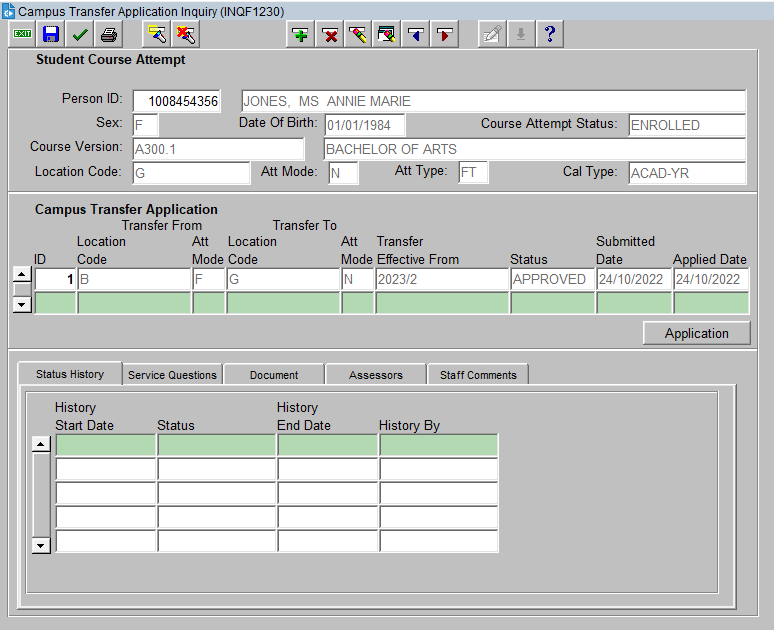
This form displays details for a Campus Transfer Application.
It is accessed from the Person Inquiry form (INQF1A00) via the Campus Transfer Application button for a selected Student Course Attempt (SCA).
______________________________
Image added: 06-October -2022
The form is divided into
the following blocks:
The SCA block shows a particular course attempt for the student, as inquired on via the Person Inquiry screen (INQF1A00).
Field Details:
- Person ID and Name
- Sex
- Date of Birth
- Course Attempt Status - Indicates the current status of a Student's Course Attempt. Possible values are:
- UNCONFIRM - Course to which the student has been admitted (pre-enrolled or offered a place), but has not yet confirmed their intention to accept the place and enrol.
- INACTIVE - Where the student has accepted the offer and confirmed their intention to enrol, but has no enrolled units.
- ENROLLED - Course in which the student has ENROLLED units.
- INTERMIT - Course from which the student is currently intermitted (has leave of absence). Once the intermission has expired, the status reverts to INACTIVE or ENROLLED.
- LAPSED - Continuing (returning) student has failed to confirm their Unit Enrolment within the designated timeframe.
- DISCONTIN - Course from which the student has been withdrawn.
- COMPLETE - Course in which the student has satisfied the completion requirements.
- Course Version and Title - The Course Code, Version and Title.
- Location Code - The location (usually a campus) of the Course Offer made to the student. Units may have been undertaken at locations other than the course's location.
- Attendance Mode - The Attendance Mode of the Course Offer made to the student. Typical modes are On-Campus, Off-Campus and multi-modal (a combination of On and Off-Campus).
- Attendance Type - The Attendance Type of the Course Offer made to the student. Typical Attendance Types are full-time and part-time.
- Calendar Type - Displays the Calendar Type of the Academic Period in which the Course Attempt was applicable. This is relevant to institutions that operate more than one Academic Calendar.
Campus Transfer Application Block
Displays campus transfer applications for the SCA.
Field Details:
- ID - The identification number for the application.
- Transfer From Location Code and Attendance Mode - The current (or original if the application has been applied) Location Code and Attendance Mode.
- Transfer To Location Code and Attendance Mode - The nominated new Location Code and Attendance Mode.
- Transfer Effective From - The Teaching Period from which the campus transfer is to take effect.
- Status - The current institution-defined status of the application. The status history can be viewed in the Status History tab.
- Submitted Date - The date the application was submitted.
- Applied Date - If the application has been approved, the date the application was applied (i.e. the campus transfer was processed in Callista).
- Application button - The button navigates to the Campus Transfer Application in ENRW3300 and is only enabled if the user has access to this page.
For the selected campus transfer application, the following tabs are available:
Displays the status history for the selected campus transfer application.
- History Start Date - The date the application was assigned the status.
- Status - The institution-defined application status.
- History End Date - The date the application was updated to another status.
- History By - The person who updated the status. (This field will display 'CALLISTA_CONNECT_USER' for any status changes made by the student in Student Connect.)
Displays the service question/s for the selected campus transfer application.
- Service Code - The institution-defined code for a Service provided by the institution.
- Description - The description of the Service.
- Response Type - The type of response required. The available choices are YES-NO, MULTIPLE CHOICE and OPEN.
- Yes-No Response - The response for Response Types of YES-NO.
- Multi Choice Response button - The button displays a pop-up with details of the multiple choice responses and is only enabled for Response Types of MULTIPLE-CHOICE.
- Open Question Response - The response for Response Types of OPEN.
Displays the document/s for the selected campus transfer application.
- Document Type - The institution-defined document type assigned to a document.
- Filename - The filename of the document.
- Document Uploaded Date - The date the document was uploaded.
- Open button - The button opens a new browser window in which the selected document is displayed/downloaded.
- Document Uploaded By - The person who uploaded the document.
- Comments - Any comments provided when the document was uploaded.
Displays the assessor/s for the selected campus transfer application (will only be populated if assessors have been formally assigned to the application within ENRW3300).
- Assessor Person ID and Name - The staff member assigned as the assessor.
- Assigned Date - The date the assessor was assigned.
- Outcome - The outcome recorded by the assessor. The available choices are ACCEPT or DECLINE.
- Outcome Date - The date the outcome was recorded by the assessor.
- Assessor Comments - Any comments noted by the assessor.
Displays staff comments for the selected campus transfer application.
Enquire on a Student's Campus Transfer Application
- Access the form via selecting a person and SCA from the Person Inquiry screen (INQF1A00) and selecting the Campus Transfer Application button.
- Details of the Person and SCA inquired on in INQF1A00 are automatically displayed.
- In the Campus Transfer Application block, select the required application.
- You can then select any of the tabs for further details on the application.
- If you have access to ENRW3300, you can also select the Application button to navigate directly to the application.
Perform one of the following actions to exit the form:
- Click on the Exit button
 on the
toolbar to return to the Callista SMS menu. Several screens may need to be closed to return to the menu.
on the
toolbar to return to the Callista SMS menu. Several screens may need to be closed to return to the menu.
- Select 'Exit Forms' from the 'Action' menu to end your Inquiry session.
Last
modified on
October 20, 2022
History
Information
| Release Version
| Project
| Change to Document
|
| 24.1 and 25.0 |
2569 - Campus Transfer Application and Assessment |
New help page |
