
| Top of ENR | Index | Table of Contents | Feedback | |
Authorised staff can use ENRW3300 to create and manage Campus Transfer Applications:
This page is accessed directly from the main menu. It can also be accessed via the Application button from the Campus Transfer Application Inquiry form (INQF1230) or when attempting to change a course offering option for a pending application via the Change Student's Course Offering Option form (ENRF4110).
Page navigation from the Campus Transfer Applications List is shown in Figure 1 below:
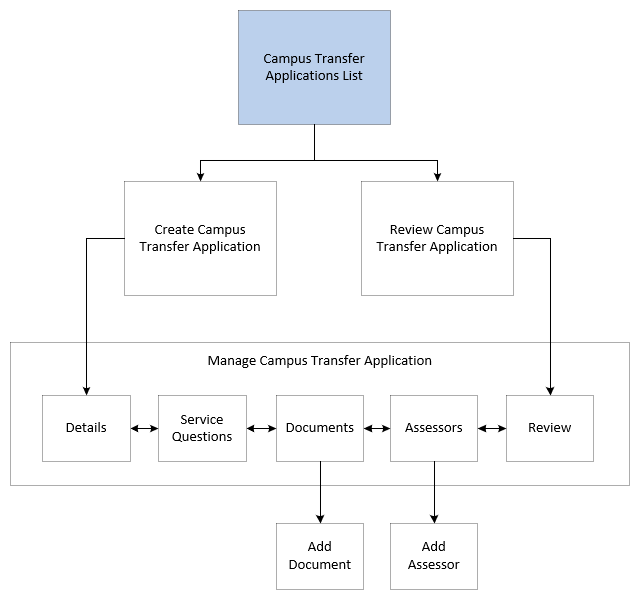
Figure 1: ENRW3300 Navigation (each box in the diagram navigates to the relevant section on this page)
This is the 'Landing' page - a gateway to creating and managing Campus Transfer Applications. The Campus Transfer Applications List details all campus transfer applications, including applications created by students in Student Connect (except those with a system application status of DRAFT).
From this page you can:
Staff can also audit the campus transfer application status across multiple applications by searching the campus transfer applications on this initial page and viewing and exporting the results to Microsoft Excel for analysis.
The Campus Transfer Application List page contains the following sections:
The Advanced Search is shown initially.
| Field: | Description: |
|---|---|
| Person ID | Person ID of the student who wants to transfer campus. CAMPUS_TRANSFER_APPLICATION.PERSON_ID |
| Course Code | The Course Code. STUDENT_COURSE_ATTEMPT.COURSE_CD |
| Application ID | The campus transfer application number. Note: the ID is unique for the Person ID/Course code. For example, a person could have two applications with the same number, such as Application ID 1 for Course code A300 and Application ID 1 for Course code M101. CAMPUS_TRANSFER_APPLICATION.APPL_NUMBER |
| Version Number | The Course Version Number. STUDENT_COURSE_ATTEMPT.VERSION_NUMBER |
| Date Submitted | The date the application was submitted. Derived based on the date the system application status was set to PENDING |
| Application Status | Status of the application. Institution values are defined in ENRW0300 and mapped to a System Application Status of PENDING, APPROVED, REJECTED or CANCELLED. CAMPUS_TRANSFER_APPLICATION.CAMPUS_TRANSFER_APPL_STATUS |
| Assessor Person ID | The Person ID of the Assessor assigned to the application. CAMPUS_TRANSFER_APPLICATION_ASSESSOR.PERSON_ID |
| Field: | Description: |
|---|---|
| Application ID | The campus transfer application number. Note: the ID is unique for the Person ID/Course code. For example, a person could have two applications with the same number, such as Application ID 1 for Course code A300 and Application ID 1 for Course code M101. CAMPUS_TRANSFER_APPLICATION.APPL_NUMBER |
| Application Status | Status of the application.
Institution values are defined in ENRW0300 and mapped to a System Application Status of PENDING, APPROVED, REJECTED or CANCELLED. CAMPUS_TRANSFER_APPLICATION.CAMPUS_TRANSFER_APPL_STATUS |
| Assessor Person ID | The Person ID of the Assessor assigned to the application. CAMPUS_TRANSFER_APPLICATION_ASSESSOR.PERSON_ID |
| Course Code | The Course Code. STUDENT_COURSE_ATTEMPT.COURSE_CD |
| Course Version | The Course Code and Version Number. STUDENT_COURSE_ATTEMPT.COURSE_CD || ‘.’ || SCA.VERSION_NUMBER |
| Current Country Code | The country code for the current location. Derived from the Government Country Code (GOVT_COUNTRY_CD) from the custom source view Campus Address Government (CAMPUS_ADDR_GOVT_V) for the Current Location. |
| Date Status Last Updated | The date the application status was last updated. CAMPUS_TRANSFER_APPLICATION.STATUS_LAST_UPDATED_ON |
| Date Submitted | The date the application was submitted. Derived based on the date the system application status was set to PENDING |
| Nominated Country Code | The country code for the nominated location. Derived from the Government Country Code (GOVT_COUNTRY_CD) from the custom source view Campus Address Government (CAMPUS_ADDR_GOVT_V) for the Nominated Location. |
| Person | Name of the student who wants to transfer campus. PERSON_DISPLAY_V.CONTEXT_BLOCK_NAME for CAMPUS_TRANSFER_APPLICATION.PERSON_ID |
| Person ID / Person ID Filter | Person ID of the student who wants to transfer campus. CAMPUS_TRANSFER_APPLICATION.PERSON_ID |
| System Applied Date | Approved applications only. The date the campus transfer (i.e. the change in location code and attendance mode) was processed. CAMPUS_TRANSFER_APPLICATION.SYSTEM_APPLIED_DT |
| Version Number | The Course Version Number. STUDENT_COURSE_ATTEMPT.VERSION_NUMBER |
The campus transfer application list initially displayed is pre-filtered to exclude records that are completed (i.e. applications with a status of REJECTED, CANCELLED, or APPROVED and applied).
Staff members can use the Filter Options to:
| Field: | Description: |
|---|---|
| Application ID | The campus transfer application number. Note: the ID is unique for the Person ID/Course code. For example, a person could have two applications with the same number, such as Application ID 1 for Course code A300 and Application ID 1 for Course code M101. CAMPUS_TRANSFER_APPLICATION.APPL_NUMBER |
| Person ID | Person ID of the student who wants to transfer campus. CAMPUS_TRANSFER_APPLICATION.PERSON_ID |
| Person | Name of the student who wants to transfer campus. PERSON_DISPLAY_V.CONTEXT_BLOCK_NAME for the CAMPUS_TRANSFER_APPLICATION.PERSON_ID |
| Course Version | The Course Code and Version Number. STUDENT_COURSE_ATTEMPT.COURSE_CD || ‘.’ || SCA.VERSION_NUMBER |
| Date Submitted | The date the application was submitted. Derived based on the date the system application status was set to PENDING |
| Application Status | Status of the application.
Institution values are defined in ENRW0300 and mapped to a System Application Status of PENDING, APPROVED, REJECTED or CANCELLED. CAMPUS_TRANSFER_APPLICATION.CAMPUS_TRANSFER_APPL_STATUS |
| Date Status Last Updated | The date the application status was last updated. CAMPUS_TRANSFER_APPLICATION.STATUS_LAST_UPDATED_ON |
| System Applied Date | Approved applications only. The date the campus transfer (i.e. the change in location code and attendance mode) was processed. CAMPUS_TRANSFER_APPLICATION.SYSTEM_APPLIED_DT |
The following sections describe each page (known as 'train stops') of the campus transfer application:
Note: * indicates the field is mandatory.
| Field: | Description: | |
|---|---|---|
| Application ID | The campus transfer application number. Read-Only field. Note: the ID is unique for the Person ID/Course code. For example, a person could have two applications with the same number, such as Application ID 1 for Course code A300 and Application ID 1 for Course code M101. CAMPUS_TRANSFER_APPLICATION.APPL_NUMBER |
|
| * Person ID | Person ID of the student who wants to transfer campus.
If the record has already been created, this field is read-only. CAMPUS_TRANSFER_APPLICATION.PERSON_ID |
|
| Person | Name of the student who wants to transfer campus.
Read-Only field. Automatically populated when a valid ID number is entered in the Person ID field (above). If
applicable, a DECEASED or ENCUMBERED lamp may be displayed for the Person. PERSON_DISPLAY_V.CONTEXT_BLOCK_NAME and PERSON_DISPLAY_V.LAMP for CAMPUS_TRANSFER_APPLICATION.PERSON_ID |
|
| Gender | The student's gender. Read-Only field. Automatically populated when a valid ID number is entered in the Person ID field (above). PERSON_DISPLAY_V.SEX for CAMPUS_TRANSFER_APPLICATION.PERSON_ID |
|
| Date of Birth | The student's date of birth. Read-Only field. Automatically populated when a valid ID number is entered in the Person ID field (above). PERSON_DISPLAY_V.BIRTH_DT for CAMPUS_TRANSFER_APPLICATION.PERSON_ID |
|
| * Course Attempt | A selector field for the SCA for which the campus transfer applies. If the record has already been created, this field is read-only. CAMPUS_TRANSFER_APPLICATION.COURSE_CD and COURSE_VERSION.TITLE |
|
| Course Attempt Status | The student's Course Attempt Status. Read-Only field. Automatically populated when a SCA is selected (above). STUDENT_COURSE_ATTEMPT.COURSE_ATTEMPT_STATUS |
|
| Calendar Type | The SCA Calendar Type. Read-Only field. Automatically populated when a SCA is selected (above). STUDENT_COURSE_ATTEMPT.CAL_TYPE |
|
| Attendance Type | The SCA Attendance Type. Read-Only field. Automatically populated when a SCA is selected (above). ATT.DESCRIPTION for the STUDENT_COURSE_ATTEMPT.ATTENDANCE_TYPE |
|
| Transfer From Location Code and Attendance Mode | The current Location Code and Attendance Mode of the SCA. Read-Only field. Automatically populated when a SCA is selected (above). CAMPUS_TRANSFER_APPLICATION.CURRENT_LOCATION_CD and CAMPUS_TRANSFER_APPLICATION.CURRENT_ATTENDANCE_MODE |
|
| * Transfer To Location Code and Attendance Mode | The nominated new Location Code and Attendance Mode of the SCA.
If the record has already been created, this field is read-only. CAMPUS_TRANSFER_APPLICATION.NOMINATED_LOCATION_CD and CAMPUS_TRANSFER_APPLICATION.NOMINATED_ATTENDANCE_MODE |
|
| * Campus Transfer Effective From | The date the transfer should take effect. If the record has already been created, this field is read-only. CAMPUS_TRANSFER_APPLICATION.EFFECTIVE_CAL_TYPE and CAMPUS_TRANSFER_APPLICATION.CI_EFFECTIVE_SEQUENCE_NUMBER |
|
| Application Submitted By | The person who created the application. Only displays in Review mode. Associated username for the person who submitted the application. This field will display 'CALLISTA_CONNECT_USER' if the student submitted the application in Student Connect. |
|
| Application Submitted On | Date on which the application was created. Only displays in Review mode. Derived based on the date the system application status was set to PENDING. |
|
| * Declaration | The creator of the application must select this checkbox to agree to the declaration before the application can be submitted. If the record has already been created, this field is read-only. CAMPUS_TRANSFER_APPLICATION.DECLARATION |
|
The following SCA information is read-only.
| Field: | Description: | |
|---|---|---|
| Commencement Date | The date on which the student commenced the course for the first time. Read-only field. STUDENT_COURSE_ATTEMPT.COMMENCEMENT_DT |
|
| Correspondence Category | The correspondence category applicable to the student's course. Read-only field. CORRESPONDENCE_CAT.DESCRIPTION for the STUDENT_COURSE_ATTEMPT.CORRESPONDENCE_CAT |
|
| Course Weighted Average Mark (WAM) (displays if available for the Course Version) | The student's Weighted Average Mark (WAM) for the course attempt. Read-only field. The routine PRGP_GET_CONFIG_PARM determines which progression measure applies to the course version based on the system configuration and if the WAM should be displayed or not. If it is displayed, then the routine PRGP_GET_STD_WAM calculates the WAM value for the student for the related course version. |
|
| Credit Points Achieved | The credit points achieved for the course attempt. Read-only field. Derived via the routine INQP_GET_PRG_CP. |
|
The following Student Unit Attempt (SUA) information is read-only. The display of this information is configurable via a resource bundle entry, so it can be removed by the institution if it is not required.
| Field: | Description: | |
|---|---|---|
| Period | The Academic Period. Read-only field. SUA_INQ_V.ALT_ACAD_PERD |
|
| Unit | The Unit Version. Read-only field. SUA_INQ_V.UNIT_VERSION |
|
| Title | The Unit Title. Read-only field. SUA_INQ_V.UNIT_TITLE |
|
| Status | The Unit Attempt Status. Read-only field. SUA_INQ_V.UNIT_ATTEMPT_STATUS |
|
| Mark | The student's Mark. Read-only field. SUA_INQ_V.MARK |
|
| Grade | The student's Grade. Read-only field. SUA_INQ_V.GRADE |
|
Campus Transfer Applications may have a number of service questions of Service Type CAMPUS TRANSFER APPLICATION specified in ENRF01Y0.
| Field: | Description: | |
|---|---|---|
| Question Text | Service question text defined in ENRF01Y0. Read-only field. |
|
| Response | The student's response to each question (as supplied to the staff member by the student or as recorded by the student directly in Student Connect). The question may or may not be mandatory, as defined in ENRF01Y0. If the record has already been created, this field is read-only. Response Types are specified for each Question in ENRF01Y0. |
|
In the Documents section, staff can:
Document Types for campus transfer applications are created in GENF0100 using the CAMPUS-TFR System Document Type. The maximum file size for each Document Type is defined in GENF0100. Institutions can also specify the maximum total combined document size that students can upload to support their campus transfer application in SSFF1220.
| Field: | Description: | |
|---|---|---|
| * File Name | The file name of the document as a link which downloads the document for viewing. If the record has already been created, this field is read-only. DOC.FILENAME |
|
| * Document Type | The Document Type that was selected by the person who uploaded the document. If the record has already been created, this field is read-only. DOC.DOCUMENT_TYPE |
|
| Uploaded By | The name of the person who uploaded the document. If the record has already been created, this field is read-only. PERSON_DISPLAY_V.CONTEXT_BLOCK_NAME for CAMPUS_TRANSFER_APPLICATION_DOCUMENT.PERSON_ID |
|
| Uploaded Date | The date the document was uploaded. If the record has already been created, this field is read-only. CAMPUS_TRANSFER_APPLICATION_DOCUMENT.CREATION_DT |
|
| Document Comments | Comments by the person who uploaded the document. If the record has already been created, this field is read-only. CAMPUS_TRANSFER_APPLICATION_DOCUMENT.COMMENTS |
|
Assessor details are recorded in the Assessors section. Selecting Add will open a pop-up window to add a new Assessor.
Notes:
| Field: | Description: | |
|---|---|---|
| * Assessor Person ID | The Person ID of the Assessor assigned to the application. The Person ID can be entered directly or searched via the Quick Search icon. Only people with the Staff Indicator selected can be added. CAMPUS_TRANSFER_APPLICATION_ASSESSOR.ASSR_PERSON_ID |
|
| Person Name | The Assessor's name. PERSON_DISPLAY_V.CONTEXT_BLOCK_NAME for CAMPUS_TRANSFER_APPLICATION_ASSESSOR.ASSR_PERSON_ID |
|
| Date Assigned | Date on which the Assessor was assigned. Read-only field. Automatically populated when an Assessor is added (above). CAMPUS_TRANSFER_APPLICATION_ASSESSOR.ASSR_ASSIGNED_DT |
|
| Outcome | Assessment outcome (ACCEPT or DECLINE) of the application. Only the corresponding Assessor can assign this outcome (via the 'Review' screen). CAMPUS_TRANSFER_APPLICATION_ASSESSOR.ASSR_OUTCOME_CD |
|
| Outcome Date | Date on which the Assessor Outcome was updated. Read-only field. Automatically populated when an Outcome is added (above). CAMPUS_TRANSFER_APPLICATION_ASSESSOR.ASSR_OUTCOME_DATE |
|
| Comments | Text field (of 4000 characters) in which comments from Assessor can be added. Only the corresponding Assessor can add comments (via the 'Review' screen). CAMPUS_TRANSFER_APPLICATION_ASSESSOR.COMMENTS |
|
The Review page provides an overview of the submitted campus transfer application.
From this page, staff can:
The following table provides descriptions of the fields contained in the top 'Review' block of this page. The rest of the page displays a read-only summary of the other application pages/train stops (as previously described in the above tables).
| Field: | Description: | |
|---|---|---|
| * Application Status | The status of the application.
Institution values are defined in ENRW0300 and mapped to a System Application Status of PENDING, APPROVED, REJECTED or CANCELLED. If an application has been REJECTED or APPROVED and applied, then this field will be read-only. CAMPUS_TRANSFER_APPLICATION.CAMPUS_TRANSFER_APPL_STATUS |
|
| System Applied Date | The date the transfer was applied (i.e. processed). Automatically populated and displayed when an APPROVED campus transfer application has been applied. CAMPUS_TRANSFER_APPLICATION.SYSTEM_APPLIED_DT |
|
| Staff Comments | Text field (of 4000 characters) in which comments can be added. CAMPUS_TRANSFER_APPLICATION.COMMENTS |
|
| Assessor Comments | Text field (of 4000 characters) in which comments from Assessor can be added. Only the corresponding Assessor can add comments. Read-only field if the application has a status of REJECTED or APPROVED and applied. CAMPUS_TRANSFER_APPLICATION_ASSESSOR.COMMENTS |
|
New campus transfer applications can be created by staff on the New Campus Transfer Application page.
For instructions and more information, refer to the Campus Transfer Application Pages above.
Existing Campus Transfer Applications are accessed via a specific Application ID on the Campus Transfer Applications List page (which will navigate directly to the Review page).
Staff can perform the following actions on existing applications:
Rules and Notes:
If staff only need to view applications, they can use the Campus Transfer Application Inquiry form (INQF1230) instead.
For more information regarding the the Campus Transfer Applications functionality and setup, refer to the Campus Transfer Applications Overview Help page.
Page last modified: 19 October, 2022 5:04 PM
History Information:
| Release Version | Project | Change to Document |
|---|---|---|
| 24.1 and 25.0 | 2569 - Campus Transfer Application and Assessment | New help page |