INQF1250 -Discontinuation And Intermission Application Inquiry
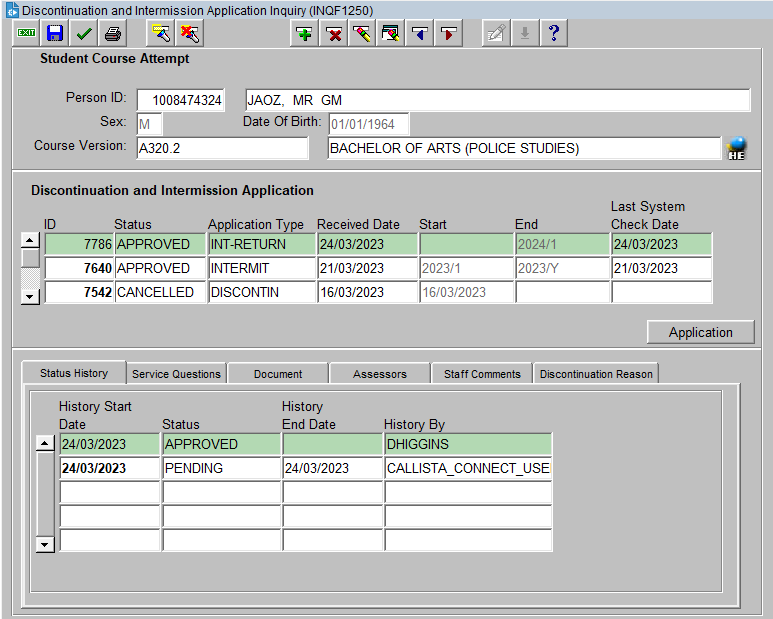
This form displays details for an Discontinuation and Intermission Application.
It is accessed from the Callista SMS Main Menu or from:
- Person Inquiry form (INQF1A00) via the Discontinuation and Intermission Application button for the selected Student Course Attempt (SCA).
- Record Enrolments form (ENRF3000) via the Application button in the Discontinuation T-list item for the selected Student Course Attempt (SCA).
- Maintain Student Course Intermission form (ENRF4160) via the Application button for the selected Student Course Attempt (SCA).
Note that when accessed via ENRF3000 the discontinuation applications will be shown be default and when accessed via ENRF4160 the intermission applications will be shown be default.
______________________________
Image added April 2023
The form is divided into
the following blocks:
The SCA block shows a particular course attempt for the student, as inquired on via the Person Inquiry screen (INQF1A00).
Field Details:
- Person ID and Name
- Sex
- Date of Birth
- Course Version and Title - The Course Code, Version and Title.
Discontinuation and Intermission Application Block
Displays Discontinuation and Intermission applications for the SCA.
Field Details:
- ID - The identification number for the application.
- Status - The current institution-defined status of the application.
- Application Type - DISCONTIN, INTERMIT, INT-RETURN or INT-CANCEL
- Received Date - The date the application was received.
- Start - Date discontinued or Teaching Period when Intermission starts
- End - Teaching Periond when Intermission ends
- Last System Check Date - If the application has been approved, the date the application was applied.
The Application button opens the context application within the ENRW3400 Details page and is only enabled if the user has access to that page.
For the selected Discontinuation or Intermission application, the following tabs are available:
Displays the status history for the selected Discontinuation or Intermission application.
- History Start Date - The date the application was assigned the status
- Status - The institution-defined application status
- History End Date - The date the application was updated to another status
- History By - The person who updated the status. (This field will display 'CALLISTA_CONNECT_USER' for any status changes made by the student in Student Connect.)
Displays the service questions for the selected Discontinuation or Intermission application.
- Service Code - The institution-defined code for the service
- Question Text - The question for the service
- Response Type - The type of response required. The available choices are YES-NO, MULTIPLE CHOICE and OPEN
- Yes-No Answer - The response for Response Types of YES-NO
- Multi Choice Response button - The button displays an overlay with details of the multiple choice responses and is only enabled for Response Types of MULTIPLE-CHOICE.
- Open Question Response - The response for Response Types of OPEN.
Displays the document/s for the selected Discontinuation or Intermission application.
- Document Type - The institution-defined document type assigned to a document
- Filename - The filename of the document
- Uploaded Date - The date the document was uploaded
- Open button - The button opens a new browser window in which the selected document is displayed/downloaded.
- Document Uploaded By - The person who uploaded the document
- Comments - Any comments provided when the document was uploaded.
Displays the assessor/s for the selected Discontinuation or Intermission application (will only be populated if assessors have been formally assigned to the application within ENRF4160).
- Assessor Person ID - The staff member assigned as the assessor.
- Assigned Name- The assessor's name
- Assessor Status - The outcome recorded by the assessor. The available choices are PENDING, ACCEPTED or REJECTED..
- Decision Date - The date the outcome was recorded by the assessor
- Primary Assessor - Check box is selected if this person is the Primary Assessor
- Assessor Comments - Any comments noted by the assessor.
Displays further comments for the selected Discontinuation or Intermission application.
Displays the Discontinuation Reason selected for the Discontinuation application in ENRF3000.
- Discontinuation Reason Code - The code selected in ENRF3000
- Description- The description associated with the code.
Enquire on a Student's Discontinuation or Intermission Application
- Access the form via selecting a person and SCA from the Person Inquiry screen (INQF1A00) and selecting the Discontinuation or Intermission Application button.
- Details of the Person and SCA are automatically displayed.
- In the Discontinuation or Intermission Application block, select the required application.
- You can then select any of the tabs for further details on the application.
- If you have access to ENRW3400, you can also select the Application button to navigate directly to the application.
Perform one of the following actions to exit the form:
- Click on the Exit button
 on the
toolbar to return to the Callista SMS menu. Several screens may need to be closed to return to the menu.
on the
toolbar to return to the Callista SMS menu. Several screens may need to be closed to return to the menu.
- Select 'Exit Forms' from the 'Action' menu to end your Inquiry session.
Last
modified on
April 20, 2023
History
Information
| Release Version
| Project
| Change to Document
|
| 25.1 |
2605 - Intermission & Discontinuation Enhancements |
New help page |
