
| Top of ENR | Index | Table of Contents | Feedback | |
This page is used by authorised staff to create a Discontinuation, Intermission or Early Return from Intermission application or Cancel a Future Period of Approved Intermission applications on behalf of a student, and/or assess an existing application.
A student can provide an application to staff to submit on their behalf, (for example, in-person, by e-mail or phone). Authorised staff enter the details directly into the ENRW3400 (Create) page where they can run a system check and approve the application, if possible.
Alternatively, students can submit an application themselves via Student Connect. Applications that are not automatically approved (i.e. if the Allow Auto Approval checkbox is deselected in ENRW0210 and, for the course, in CRSF1210) are automatically transferred from Student Connect to this page (ENR3400) with a status of PENDING, where they will be assessed by authorised staff.
An application can have a status of PENDING, APPROVED, REJECTED or CANCELLED.
System-wide auto approval of applications can be set separately for Discontinuation and Intermission applications in ENRW0210, and can be further regulated for each course in CRSF1210. (Note: The configuration settings for Intermission applications will also be used for Early Return from Intermission and Cancel Future Period of Approved Intermission applications.)
Institutions can configure how Discontinuation, Intermission, Early Return from Intermission and Cancel Future Period of Approved Intermission applications are created and processed. For more information, see the Discontinuation/Intermission Application Configuration Help page.
Only current Student Course Attempts (SCAs) with a status of ENROLLED, INACTIVE, INTERMIT or LAPSED can be discontinued.
The ENRW3400 page is accessed directly from the main menu.
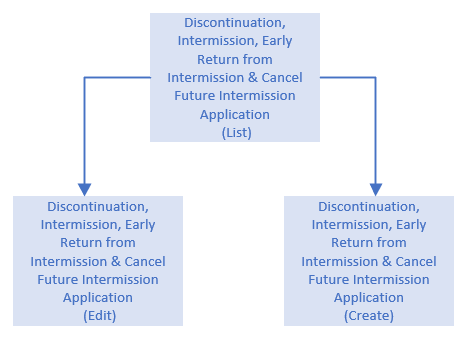
Page navigation from the Applications (List) page to the 'New Discontinuation, Intermission, Early Return from Intermission and Cancel Future Intermission Application (Create)' page and the 'Discontinuation, Intermission, Early Return from Intermission and Cancel Future Intermission Application (Edit)' page is shown below:
The Discontinuation and Intermission (List) page lists all Discontinuation, Intermission, Early Return from Intermission and Cancel Future Period of Approved Intermission applications, including applications created by students in Student Connect that were not automatically approved by the system.
From this page you can:
Lamps may display to the right of the Applicant Status:
Applications are sorted by Application ID descending (Most recent applications at the top of the list).
Field Descriptions are provided below in the Field Descriptions section, below.
The following tables describes each field on the ENRW3400 pages, including applicable Table values.
The Create and Edit pages are divided into the following sections:
* Indicates the field is mandatory.
| Field: | Description: | |
| *Person ID | Person ID of the student who wants to intermit or discontinue their course, or return early from a period of intermission. If the record has already been created, this field is a display-only field. If applicable, a DECEASED or ENCUMBERED lamp may be displayed on the Edit page for the Person. Table Value: SCA_DISCONT_INTRMSN_APPL.PERSON_ID |
|
| Person Name | Name of the student who has submitted a Discontinue, Intermission, or early return from intermission application. This field is only displayed on the Edit and List pages. Table Value: PERSON_DISPLAY_V.CONTEXT_BLOCK_NAME |
|
| Date of Birth | The student's date
of birth. Read-Only field. Automatically populated when you enter a
valid ID number in the Person ID field (above). If applicable, an Under 18 lamp may be displayed on the Edit page for the Person. Table Value: PERSON_DISPLAY_V.BIRTH_DT |
|
| Gender | The student's
gender. Read-Only field. Automatically populated when you enter a
valid ID number in the Person ID field (above). Table Value: PERSON_DISPLAY_V.SEX |
|
| Application ID | Unique ID number
for this application.
An Application ID number is automatically entered in this field
when a valid ID is entered in the Person ID field (above). Read-Only field. Table Value: SCA_DISCONT_INTRMSN_APPL. SCA_DISCONT_INTRMSN_APPL_ID |
|
| *Application Type | Indicates whether the application is for a Discontinuation, Intermission, Early Return from Intermission or intermission or Cancel Future Period of Approved Intermission. This field cannot be updated once the application is created. The Extended Intermission lamp is displayed against the Application Type within the Details if the intermission application is for an extended period, Table Value: SCA_DISCONT_INTRMSN_APPL.APPL_TYPE |
|
| *Application Status | Status of the application. Local values are defined in ENRW0200 and mapped to a System Application Status of PENDING, APPROVED, REJECTED or CANCELLED. Clicking on the associated View Status History button displays the Status Change History pop up that displays a history of changes to the Application Status of an application and who performed the updates. Table Value: SCA_DISCONT_INTRMSN_APPL.SCA_DISCONT_INTRMSN_APPL_STS |
|
| Status Updated On | The date on which the Application Status was last updated. | |
| *Course Attempt | Course Version
Details of the course from which the student wants to discontinue,
intermit or return early from a period of intermission. (Note: if the
Application Type is Early Return from Intermission and the selected
Course Attempt has no intermissions with an end date greater than the
current date, an error will display). A display-only field once the application has been created. If a new application is being created, this field contains a drop-down list of values of all courses that the student has enrolled in, from which they can discontinue, intermit or return early from a period of intermission’ Only Student Course Attempts (SCAs) with a status of ENROLLED, INACTIVE, INTERMIT or LAPSED can be discontinued. SCAs with a status of DISCONTINUED, LAPSED, DELETED, UNCONFIRMED or COMPLETED cannot be intermitted. (For intermissions) If intermission is not permitted for the course in CRSF1210, then an error message displays. (For intermissions) If the number of units completed by the student, is less than the number of units required before intermission is allowed for this course as defined in CRSF1210, then a warning message displays. Table Values: SCA_DISCONT_INTRMSN_APPL.COURSE_CD or: STUDENT_COURSE_ATTEMPT.COURSE_CD ||'.'|| STUDENT_COURSE_ATTEMPT.VERSION_NUMBER ||' - '|| STUDENT_COURSE_ATTEMPT.TITLE |
|
| Course Attempt Status | The Status of the
Course Attempt from which the student wants to discontinue, intermit or
return early from a period of intermission. Read-Only field that is
only displayed once the application has been created. Table Value: STUDENT_COURSE_ATTEMPT.COURSE_ATTEMPT_STATUS |
|
| Associated Intermission Period | The intermission period from which the student wants to return early from. Only intermissions for the selected Course Attempt that have an end date in the future will display for selection when creating an application. A display-only field once the application has been created, which is derived based on the student course intermission that overlaps with the Intermission End Period or Override End Date. | |
| Field: | Description: | |
| Commencement Date | The date on which the student commenced the course for the first time. Table Value: STUDENT_COURSE_ATTEMPT.COMMENCEMENT_DT |
|
| Location Code | The location from where the student's course is offered. Table Value: STUDENT_COURSE_ATTEMPT.LOCATION_CD) |
|
| Attendance Mode | The institution-defined attendance mode in which the student's course is delivered. Table Value: STUDENT_COURSE_ATTEMPT.ATTENDANCE_MODE |
|
| Correspondence Category | The correspondence category applicable to the student's course. Table Value: STUDENT_COURSE_ATTEMPT.CORRESPONDENCE_CAT |
|
| Fee Category | The fee category applicable to the student's course. Table Value: STUDENT_COURSE_ATTEMPT.FEE_CAT |
|
| Progression Status | The progression status of the student course attempt. Table Value: STUDENT_COURSE_ATTEMPT.PROGRESSION_STATUS |
|
| Min Additional CP Required | The minimum number of credit points required to complete course requirements. Table Value: COURSE_VERSION.CREDIT_POINTS_REQUIRED. This is populated via the routine INQP_GET_PRG_CP which calculates Min Additional CP Required value for the Student for related Course Version.) |
|
| Course WAM (displays if available for the Course Version) | The student's weighted average mark for the course attempt. Table Value: The routine PRGP_GET_CONFIG_PARM determines what progression measure applies to the course version based on the system configuration and if WAM should be displayed or not. If displayed then the routine PRGP_GET_STD_WAM calculates WAM value for the student for related Course Version. |
|
| Total Intermission Months Already Approved (displays if Max Intermission Months is defined for the Course Version) | The total number of intermission months that have been approved for the student course attempt. Table Value: Difference in months for start_dt and end_date from STUDENT_COURSE_INTERMISSION |
|
| Max Intermission Months (displays if defined for the Course Version) | The total intermission duration (in months) allowed to a student over the period of the course. Table Value: COURSE_VERSION.MAX_INTRMSN_DURATION |
|
| Field: | Description: |
| *Received On | Date on which the application was created. If the application has been initiated via another document, record the date that that application was received. Once saved, this field cannot be updated. Table Value: SCA_DISCONT_INTRMSN_APPL.RECEIVED_ON |
| Disclaimer | Check box to indicate if a Disclaimer was included in the hard-copy document. Table Value: SCA_DISCONT_INTRMSN_APPL.DISCLAIMER_CONFIRM_IND |
| *Signatures | Select a value from the
drop-down list of values to indicate if a signature was required on the
document. Values are: NOT REQUIRED, NOT PROVIDED and PROVIDED. The default value is NOT REQUIRED. Table Value: SCA_DISCONT_INTRMSN_APPL.SIGNATURES_RECEIVED |
| External Reference | If applicable, record an identifier for the application that is used in another system.
For example, external reference details for the document, such as, a Document Record ID or filename. Table Value: SCA_DISCONT_INTRMSN_APPL.EXTERNAL_REF |
| Effective Date | Only displayed for Discontinuation applications.
The date on which the course is to be discontinued. This date cannot be earlier than the Commencement Date for the SCA and cannot be before the finalised Outcome Date of completed Unit Attempts. Table Value: SCA_DISCONT_INTRMSN_APPL.DISCONT_EFFECTIVE_DT |
| Override End Date | Only displayed for Early
Return from Intermission applications. The date on which the student
course intermission is to be ended. If the Override End Date is defined,
it will be used to end date the student course intermission, instead of
using the last date of the Intermission End Period. Table Value: SCA_DISCONT_INTRMSN_APPL.DISCONT_EFFECTIVE_DT |
| Reason Code | Only displayed for Discontinuation applications.
This is the Discontinuation Reason Code recorded for the Discontinuation application (see ENRF01G0). The Course Transfer Discontinuation Reason Code can only be set if the Course Attempt has been transferred. Table Value: SCA_DISCONT_INTRMSN_APPL.DISCONTINUTION_REASON_CD together with the description of the Reason Code - recorded with it in ENRF01G0. DISCONTINUATION_REASON_CD.DESCRIPTION |
| *Start Teach Period | Only displayed for
Intermission applications. Used to define the period of intermission
(must not overlap with an existing intermission period). Both a Start Period and an End Period (below) must be recorded. If Calendar Type Restrictions exist (in CRSF1130) for a Course Category associated with the course then only instances of calendars of those calendar types are available. e.g. If only SEM-1 is listed then only sem-1 calendar instances are available. The 'alternate code', defined for teaching period in CALF0220, is displayed for the first Teaching Period in the Intermission period. A warning will display if the End Date for this calendar has passed. For Intermission applications, an error will display if the student has COMPLETED units in any Teaching Period in the Intermission period. Table value: SCA_DISCONT_INTRMSN_APPL.TEACH_START_CAL_TYPE or: CALENDAR_INSTANCE.ALTERNATE_CODE together with the Date range for this Teaching period. CALENDAR_INSTANCE.START_DT ||' – ' || CALENDAR_INSTANCE.END_DT |
| *End Teach Period | Only displayed for Intermission applications. Both a Start Period (above) and an End Period must be recorded. If Calendar Type Restrictions exist (in CRSF1130) for a Course Category associated with the course then only instances of calendars of those calendar types are available. e.g. If only SEM-2 is listed then only sem-2 calendar instances are available. The 'alternate code', defined for Teaching Period in CALF0220, is displayed for the last Teaching Period in the Intermission period. If the duration of the Intermission thus defined exceeds the Maximum Intermission duration defined in for this course in CRSF1210, then a warning message displays. If the duration of the Intermission thus defined is less than the Minimum Intermission duration defined in for this course in CRSF1210, then a warning message displays. A warning message displays if the End Date for this calendar has passed, or if it is earlier than the Start Date of the Intermission. Table value: SCA_DISCONT_INTRMSN_APPL.TEACH_END_CAL_TYPE or: CALENDAR_INSTANCE.ALTERNATE_CODE together with the Date range for this Teaching period. CALENDAR_INSTANCE.START_DT ||' – ' || CALENDAR_INSTANCE.END_DT |
| Intermission End Period | Only displayed for Early
Return from Intermission applications. The last date of the Intermission
End Period will be used to end date the student course intermission, if
the Override End Date is not defined. Will only display Active
Teaching calendars where:
SCA_DISCONT_INTRMSN_APPL.TEACH_END_CAL_TYPE |
| Comments | Input field for comments relevant to this application. Holds up to 4000 characters. Table Value: SCA_DISCONT_INTRMSN_APPL.COMMENTS |
When an Application Type (Discontinue, Intermit or Early Return from
Intermission) is specified for the application, 'service' questions (of
Service Type DISCONTINUE, INTERMIT, INTERMISSION RETURN or INTERMISSION CANCEL specified in ENRF01Y0) may be displayed. These are only displayed if the Use Display Conditions indicator is selected for the question in ENRF01Y0.
Questions Response Types can be YES-NO, MULTCHOICE or OPEN, as defined in ENRF01Y0 for each .
| Field: | Description: | |
| Question Text | Read-Only. Service Question text defined for this Application Type in ENRF01Y0. The student's response to each question is recorded below the Question (as supplied by the student in-person, via e-mail etc, or as recorded in their online application in Student Connect). NVL(SERVICE.QUESTION_TEXT, SERVICE.DESCRIPTION) |
|
| Response | The answer to the question (above) as recorded by the student when submitting their application in Student Connect,
or as provided by the student (in-person or via e-mail etc.) to
authorised staff submitting an application on behalf of the student in
this page.
|
|
Staff can use the Documentation section to add and/or remove documents from applications. Document Types for discontinuation, intermission and early return from intermission applications are created in GENF0100 using the appropriate System Document Type.
Staff can remove documents that have been uploaded by students if they have the DEL-STDDOC System Advanced Function assigned to their person ID or security role.
The maximum file size for each Document Type is also defined in GENF0100.
After a document has been uploaded, you can see the following columns in the Documentation section:
| Field: | Description: | |
| File Name | This is a clickable link used for downloading the document. | |
| Document Type | The Document Type that was selected by the person who uploaded the document. |
|
| Uploaded By | The name of the person who uploaded the document. | |
| Uploaded By Student | Indicator will be Yes if a student uploaded the document. Table value: SCA_DISCONT_INTRMSN_APPL_DOC.UPLOADED_BY_STUDENT_IND |
|
| Uploaded On | The date that the document was uploaded) Table Value: SCA_DISCONT_INTRMSN_APPL_DOC.CREATION_DT |
|
| Comments | Comments left by the person who uploaded the document SCA_DISCONT_INTRMSN_APPL_DOC.COMMENTS |
|
This section displays details about other discontinuation, intermission and early return from intermission applications that have been submitted for the same Student Course Attempt as the application that is being viewed.
| Column: | Description: | |
| Application ID | Unique ID number for the application |
|
| Application Type | Indicates whether the application is for a Discontinuation, Intermission, Early Return from Intermission, or Cancel Future Period of Approved Intermission. | |
| Start Period | This column will be populated if the Application Type is INTERMIT, or if the Application Type is INT-RETURN and an Intermission End Period has been set | |
| End Period | This column will be populated if the Application Type is INTERMIT, or if the Application Type is INT-RETURN and an Intermission End Period has been set | |
| Effective Date | This column will be populated if the Application Type is DISCONTIN, or if the Application Type is INT-RETURN and an Override End Date has been set | |
| Received On | The date the application was received | |
| Application Status | The current status of the application | |
| Status Updated On | The date the Application Status was last updated | |
Assessor details and the status of the application are recorded on the Add Assessor pop-up page when the application is assessed. The Add Assessor pop-up page displays the following fields:
| Field: | Description: | |
| *Person ID | The Person ID code of the staff member assessing the application. Enter the Person ID code or search for a code via the Quick Search icon. A warning is displayed if the Person is deceased. Table Value: SCA_DISCONT_INTRMSN_APPL_ASSR.ASSR_PERSON_ID |
|
| Name | The name of the assessor. | |
| Primary Assessor | Select this
check box if this person is the Primary
Assessor. The Primary Assessor is the person who takes final
responsibility for the assessment of the application. For example, an Assessor can reject or approve an application. The assessment outcome is recorded in the Assessor Status field, below. This field is optional. Only one Assessor can be the Primary Assessor. Table Value: SCA_DISCONT_INTRMSN_APPL_ASSR.PRIMARY_ASSR_IND |
|
| *Assessor Status | Assessment outcome or status of the application, as determined by the corresponding Assessor. The system status starts as PENDING, then is changed to APPROVED or REJECTED. Table Value: SCA_DISCONT_INTRMSN_APPL_ASSR.SCA_DISCONT_INTRMSN_ASSR_STS |
|
| Decision Date | Date on which the Assessor Status (above) is updated. Table Value: SCA_DISCONT_INTRMSN_APPL_ASSR.DECISION_DT |
|
| Comments | Text in which comments from Assessor can be added. Holds up to 4000 characters and is an optional field. Table Value: SCA_DISCONT_INTRMSN_APPL_ASSR.COMMENTS |
|
| Field: | Description: | |
| System Check | Click on the Run System Check icon to invoke a number
of system checks. A Pass or Fail result is listed for each check.
The date of the last System Check is displayed above the results. Results are displayed for the following checks:
SYSTEM_CHECK_DT |
|
New Discontinuation, Intermission, Early Return from Intermission applications and Cancel Future Period of Intermission are created by authorised staff on the New Discontinuation or Intermission Application page. This page is accessed via the New icon located on the Applications (List) page.
These are applications submitted by staff on behalf of students, that may have been received from students via e-mail, phone or in-person.
If you were nominated as the e-mail recipient for applications (set up in ENRW0210) you would have received notification that an application has been submitted.
1. Click the New icon located above the list of records on the Applications (List) page. The New Application page is displayed.
2. Enter the Person ID of the student who wants to discontinue or intermit from their course, return early from a period of intermission or cancel a future intermission.
To Find the Required Person ID, click the Quick Search icon located next to the Person ID field. The Search and Select Person pop-up window is displayed. For more information on how to use Search, see the Working with Callista Lists Help page.
3. The Date of Birth, Gender and Application ID fields are automatically populated once an ID is entered in the Person ID field.
4. Complete all remaining required fields in this section, as required. For instructions and more information, see the Field Descriptions section, above.
1. If the application has been initiated via another document, complete the following fields in the Application section of the page:
2. For an Intermission application: In the Start and End Teach Period fields, define the period of the intermission.
For more information, see the Field Descriptions section, above. Users with the EXTINTUPDR security advanced function are prevented from approving an Extended Intermission application whilst it is being created. They are also prevented from editing and running the System Check for a previously Approved Extended Intermission application.
For a Discontinuation application: In the Effective Date field, record the date on which the course will be discontinued.
For more information, see the Field Descriptions section, above.
For an Early Return from Intermission application: In the Intermission End Period field, define the new End Period of the intermission OR in the Override End Date field, record the date on which the intermission will be ended.
1. In the Questions section, record the student's answers (as provided to you by the student) to each displayed question. These questions were defined in ENRF01Y0 and they will vary according to the type of application (Intermission, Discontinuation or Early Return from Intermission).
Processing of the application may depend on the answers that you record here (determined in ENRF01Y5).
1. In the Assessors section, select the required Assessors (yourself or another staff member(s)) who can reject or approve the application.
2. (If Required) Nominate one of the
Assessors as a Primary Assessor. The 'Primary Assessor' is the person
who takes final responsibility for the assessment of the application.
Note: If you have authority to assess and approve the application, firstly ensure you have run the System Check (see below).
3. Update the Assessor Status to PENDING, if the application has not yet been assessed (or a System Check has not yet been run).
1. Click the Run System Check icon to perform a system check of the application details. This calls the system checks process that verifies application details against configuration settings to determine whether an application can be approved or not.
Note: When the System Check is initiated, the action first saves the record (i.e. creates the application).
2. The system checks and verifies application details against configuration settings that determine whether the application can be approved or not. These are the same checks that are run by the system if an application is Auto-Approved (for example, applications created in Student Connect with the 'Allow Auto Approve' option (set in ENRW0210) enabled).
If one or more of the checks failed, resolve the errors and re-run the system checks on the application, if required.
Note: An application cannot be applied by running the System Check if the following System Checks have failed:
Note: System-wide auto approval of applications can be set separately for Discontinuation and Intermission applications in ENRW0210, and can be further regulated for each Course in CRSF1210. (Note: Early Return from Intermission applications will use the same settings as Intermission applications.)
The status of the application may change to APPROVE if Auto Approve was made available for this application (in ENRW0210 and ENRF01G0).
The table below shows details about what each of the System Checks looks at. Note: Some of the System Checks include slightly different logic depending on whether the application is invoked by staff (through ENRW3400) or by a student (through DISINTAPPL).
| System Check | ENRW3400 | DISINTAPPL | ||||
|---|---|---|---|---|---|---|
| Intermission Application | Discontinuation Application |
Early Return from Intermission Application | Cancel Future Intermission | Intermission Application | Discontinuation Application | |
| Course Attempt Status | Set to Pass if the student’s Course Attempt Status is ENROLLED, INACTIVE or INTERMIT. |
Set to Pass if the student’s Course Attempt Status is ENROLLED, INACTIVE, INTERMIT or LAPSED. |
Set to Pass if the student’s Course Attempt Status is ENROLLED, INACTIVE or INTERMIT. | Set to Pass if the student’s course attempt status is ENROLLED, INACTIVE or INTERMIT. | Set to Pass if the student’s Course Attempt Status is ENROLLED, INACTIVE or INTERMIT. | |
| Student Type | Always set to Pass. | Set to Pass if the student is not an International student. | ||||
| Minimum Units Completed *see Note below |
Set to Pass if the number of COMPLETED unit attempts ≥ the Number of Units Before Intermission (defined in CRSF1210). | Always set to Pass. |
Always set to Pass. | Always set to Pass | Set to Pass if the number of COMPLETED unit attempts ≥ the Number of Units Before Intermission (defined in CRSF1210). | Always set to Pass. |
| Question Response Allow Auto Processing | Set to Pass if answers are provided for Service Questions with a Response Type of Yes-No or Multiple Choice and the Answer Check has been defined as Allow Auto Approve (in ENRF01Y5). | |||||
| Intermission Length | Set to Pass if:
|
Always set to Pass. |
Set to Pass if:
|
Always set to Pass | Set to Pass if:
|
Always set to Pass. |
| Total Intermission Length | Set to Pass if:
|
Always set to Pass. |
Always set to Pass. | Always set to Pass | Set to Pass if:
|
Always set to Pass. |
| Required Signatures Recorded | Set to Pass if the Signatures Received is set to PROVIDED or NOT REQUIRED. | Always set to Pass. | ||||
Note: Intermission applications can be submitted for Courses in which the student has not completed the minimum number of units. Such an application will fail the minimum units system check and therefore will not be automatically approved and applied. The application can then be assessed by an administrator.
The application is saved when the System Check is run. If the system is configured to Allow Auto Approval of intermission applications (ENRW0210), the application will be automatically approved if it is passed all System Checks, and if the system is configured to Auto Update Student Course Detail (ENRW0210), the targeted Student Course Intermission will be deleted. Additionally, the system will identify if there is any associated intermission application (that originally applied the intermission), update its status to CANCELLED and update its Comments to indicate it has been cancelled by a Cancel Future Intermission application.
5. Approve or Reject the Application:
(After a System Check has been run) If all the System Check results have a result of 'Pass', and the application has been assessed by all required Assessors (listed in the Assessor section), the application can be APPROVED by an Assessor.
If the following System Checks fail, the application can still be applied:
1. Select the required Assessor (listed in the Assessor section of the page) then click on the Edit Records icon.
2. Change the Assessor (Outcome) Status to a status of APPROVED (or REJECTED, if you are rejecting the application), and record a Decision Date. Click the Save & Close icon to save your changes.
3. Update the Application Status field (located at the top of the page) to APPROVED (or REJECTED).
4. Click theSave & Close button (located at the bottom of the page) to save and close the application.
5. On saving the application, one of the following lamps is displayed on the application to indicate the outcome of the assessment:
If the 'Auto Student Course Detail Update' value in ENRW0210 allows auto-update of this type of application, then this will effectively intermit or discontinue the Student Course Attempt in Callista SMS, or update the end date of a recorded intermission period. A Discontinuation record will be visible in ENRF3000 or an Intermission record will be visible in ENRF4160. If the 'Auto Student Course Detail Update' value in ENRW0210 is disabled, then the Callista enrolment records will need to be updated manually. For more information, see Course Discontinuation and Discontinuation/Intermission Application Configuration. |
The Intermit Application (Edit), Early Return from Intermission Application (Edit), Cancel Future Period of Approved Intermission (Edit) or Discontinue Application (Edit) page is accessed via a specific Application ID on the Applications (List) page.
Existing applications may have been created by an authorised staff member in ENRW3400, or by the student in the Student Connect 'Discontinuation or Intermission Application' (DISINTAPPL). Note: students cannot submit an application for Early Return from Intermission in Student Connect.
You can perform the following actions on the Edit page for a specific application:
If an early return from intermission application is approved and applied, the end date of the associated student course intermission will be updated, and the following note will be appended to the student course intermission comments (which can be viewed in ENRF4160):
‘End Date updated by system on date/time for INT-RETURN application ####’
Additionally, if there is an approved intermission application for the same SCA that has a Start and End Period which overlap with the Override End Date or the end date of the Intermission End Period (if the Override End Date has not been specified) in the early return from intermission application, its status will be updated to the System Default Application Status for CANCELLED. The following note will also be appended to the comments field in the application:
‘Cancelled on date/time by INT-RETURN application ####’.
The following note will also be appended to the comments field
in the early return from intermission application that was
applied: ‘This application resulted in INTERMIT application #### being
cancelled on date/time’
A future period of intermission is an approved intermission that has a start date that is greater the current date. Such applications are identifiable via the INT-CANCEL Application Type when displayed within the ENRW3400 List. When the Cancel Future Intermission Application Type is selected for the specified Course Attempt , any approved intermission periods that have a Start Date that is greater than the current date will be presented within the Associated Intermission Period field for selection. When selected, an intermission will be cancelled once the application has been Approved and Applied.
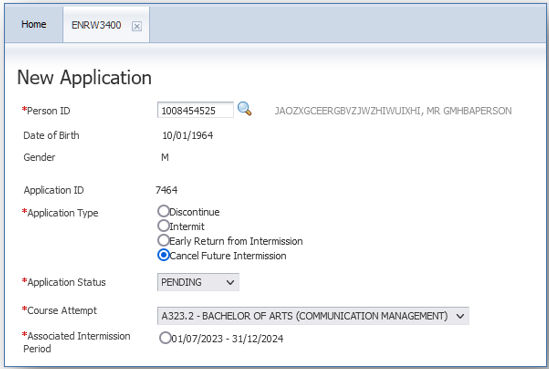
The Questions section displays Service Questions applicable to the System Service Type of INT-CANCEL, configured via Maintain Services (ENRF01Y0), if question conditions are met (where applicable).
The Documentation section allows administrators to review, add or remove supporting documents against an application.
Institutions can restrict applications at an institution-wide level or at the course level. If institutions restrict applications at institution level, then this restriction overrides the course-level configuration. For example, if an institution restricts Intermission applications via SSF (i.e. DISINTAPPL in Student Connect) for the entire institution, this applies even if it is recorded that an Intermission application for a specific course can be completed via SSF (Student Connect).
Conversely, even if institutions have not placed restrictions at the institution-wide level; if a restriction is placed at course level it will apply. For example, if an institution allows Discontinuation applications to be available via SSF (Student Connect), students will not be able to apply if the course restricts Discontinuation applications.
For information regarding the setting up of Callista for Discontinuation and Intermission applications see Discontinuation/Intermission Application Configuration Help page.
Related pages include:
Page last modified: 2 May, 2023 1:28 PM
History Information:
| Release Version | Project | Change to Document |
| 25.1 | 2605 - Intermission and Discontinuation Enhancements | New information for Status History, Extended Intermission lamps, Filter Option and service question display. Info for Early return from intermissions and Cancel Future Intermissions included. |
| 15.0 | 1722 - 11g Upgrade | Updated Help page for 11g. |
| 11.1.0.0.0.0 | 1354 - Withdrawal and Intermission | New page. |