
When we talk about enrolling, it means selecting the units you will study in your course. Students typically enrol before the start of each semester, but you can enrol in units for up to a year ahead.
Whether you're a new or continuing student, enrolling correctly is an essential part of your study journey. This guide outlines what you need to know and do to successfully enrol in your units each semester.
How to enrol
There are 4 steps you need to undertake to successfully enrol in a Higher Education course at CDU:
- Activate your student account.
- Create a USI
- Complete the Enrolment steps in MyStudentInfo
- Select and add your units
Watch our videos below for a visual guide or read the step-by-step enrolment instructions for detailed information.
Step-by-step enrolment videos
Activate your student account
Create your USI

Completing the Enrolment Steps
Enrolling in units
Step-by-step enrolment instructions
- Firstly, you'll need to activate your student account.
Once your account is activated, you'll have access to all the CDU systems you need to study at CDU.
- If you don't have a USI already, you'll need to make one.
- Log in to the CDU Portal and select MyStudentInfo.
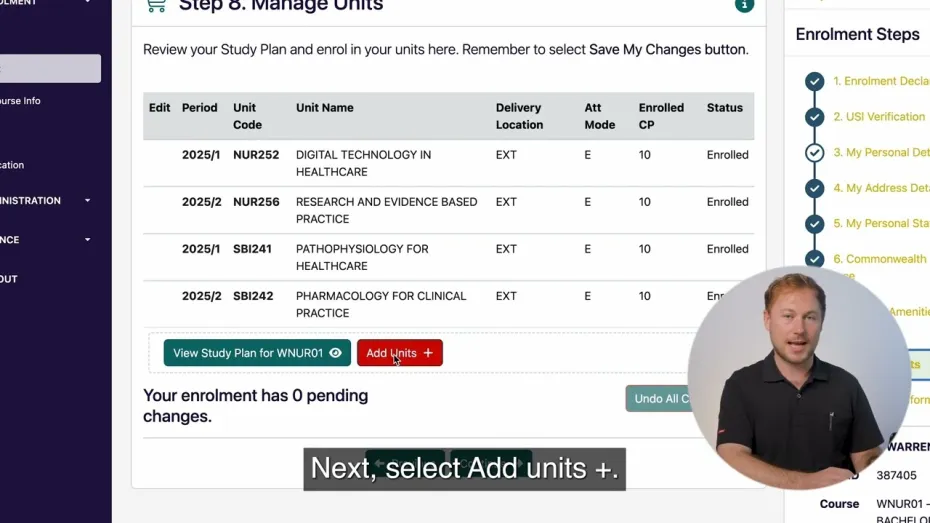
- Select the units you want to study on Step 7: Manage units.
We recommend you select 'View Study Plan' to review your study plan. Your study plan will show you the recommended order in which you should complete your units. The course catalogue can help you to choose electives. Note down the unit codes for the units you want to enrol in. Return to the Manage unit screen, select 'add units' and search for each unit using the unit codes you noted and add them to your cart. You'll see different options for study period, campus and attendance mode. Make sure you select the option that applies to you. Always remember to save your changes.
CDU TAFE - how to enrol
Your lecturer will contact you to let you know how to enrol. You might need to complete a
- paper form, or
- you might be asked to enrol online.
If you're asked to enrol online, you can follow the Higher Education steps above to enrol. The steps to enrol online are similar for TAFE and Higher Education, just be sure to follow your study plan as TAFE students typically have set units to complete each teaching period.
Selecting your units
Selecting your units
Before selecting units, review your course requirements in the Course Catalogue. It’s your responsibility to ensure you meet any prerequisites or assumed knowledge. Unit offerings are subject to change, so please check the catalogue before each semester begins. You can search for units in the Unit Catalogue.
How do I know what units to enrol in?
- Locate your course in the CDU Course Catalogue.
- Click on the 'Study Plan' tab.
- Scroll to the Recommended Study Plan that corresponds to your start date (e.g., if you commence in Semester 1, you will follow the study plan for students commencing in that semester).
- Write down the unit code for each unit (e.g., CUC100, LAL100). You will need this for your online enrolment. You can only enrol for the current year.
- Enrol online.
Please note that the above information can also be found in the Manage Units step in MyStudentInfo.
If you have Advanced Standing for any units you can create your own study plan by editing the recommended study plan provided.
Planning Your Timetable
Comprehensive information about finding your timetable, including frequently asked questions, can be found on the Timetables page.
Why are there so many options appearing in my unit code search result?
We often run units in multiple teaching periods throughout the year. We may also have units that have a similar name.
Depending on your device, you may need to scroll to the right to see the Period, Campus and Attendance mode and select your preferred option.
You can also add teaching period and attendance mode to your search criteria to narrow the list
I have typed in my unit code and unit name, but it says my search has returned 0 units
- Search using Unit Code and Teaching Period only where possible. Avoid searching by Unit Name, as it is not unique.
- Check if the Unit Catalogue shows the unit as being available for the upcoming period.
- Try a different browser, like Firefox or Chrome, and clear the cache in your browser.
- Check to see if you have previously completed the unit or its equivalent or if you have been granted advanced standing. You can view all completed units in MyStudentInfo. In the left-hand menu, go to Enrolment -> Grades.
Frequently asked questions
Am I enrolling for my entire course now?
You are only required to enrol for the upcoming semester, but you can enrol for the entire year ahead. Every unit you enrol in will appear on your Enrolment and Fees Advice - Invoice. This document can be used as proof of enrolment. If you do need proof of enrolment, please ensure you have enrolled in your units first.
What is proof of enrolment?
A proof of enrolment letter outlines all the units you are enrolled in at CDU. This document may be required by organisations such as tertiary institutions and other higher education providers, registration bodies or employers. As mentioned in the previous answer, current students can generate an Enrolment and Fees Advice - Invoice in MyStudentInfo that can serve as proof of enrolment.
I am an online student, but my course location is saying Casuarina – have I got the right course?
Casuarina is your overall course location.
When enrolling individual units within the Manage units step you will select a Campus of EXT to be classified as an external student.
My unit status continues to say To Be Added, when will you enrol my unit?
Remember, we cannot make changes to your enrolment without your express permission.
Press the red Save My Changes button at the bottom of the screen to add units marked “To Be Added”
An error appears saying have breached a unit rule, what do I do now?
This indicates there is a problem with the unit you are trying to enrol. Refer to the unit information in our unit catalogue and check if you have met the Prerequisites or if there are special enrolment conditions for the unit, e.g.; Special enrolment required through eForms.
If you are currently enrolled in the prerequisite you will need to achieve a pass in the unit before you can enrol.
You can read more about unit rules and prerequisites here: Unit rules and requirements
My unit status continues to say To Be Deleted, when will you delete my unit?
Remember, we cannot make changes to your enrolment without your express permission.
Press the red Save My Changes button at the bottom of the screen to remove units marked “To Be Deleted”
My unit status continues to say Invalid to be Added, when will you enrol my unit?
This indicates there is a problem with the unit you are trying to enrol.
Refer to the unit information in our unit catalogue and check if you have met the Prerequisites or if there are special enrolment conditions for the unit, e.g.; Special enrolment required through eForms.
You can also hover over the information icon next to the error message for more detail.
If you are enrolling in units that have prerequisites, we recommend enrolling one semester at a time (ensure you press the Save My Changes button in between). This will allow you to enrol in future units before you've completed the prerequisite unit. It may also help to identify if a particular unit is preventing you from enrolling.
I have had a special enrolment approved and I have been told I am enrolled, but my units in MyStudentInfo still say To Be Added/Invalid to be Added
Refresh your enrolment cart by pressing the red Undo All Changes button. This should then show the units that have been enrolled manually for you.
If the unit is still missing, simply reply to the special enrolment outcome email and our friendly enrolments team will be more than happy to check your enrolment for you.
Still having issues enrolling in units?
Clear your enrolment cart by pressing the red Undo All Changes button. This will delete all units that are red in your cart. It will not affect units that already have an Enrolled status.
Once your cart is cleared, enrol each unit one at a time (ensure you press the Save My Changes button) this will help identify if a particular unit is preventing you from enrolling.
Why can’t I see any units on Learnline?
It can take up to 12 hours for your enrolment to synchronise with Learnline before your unit is available on Learnline.
Check MyStudentInfo to ensure you are enrolled correctly ensuring that the teaching period match with the current teaching period.
I have finished my units and been graded on Learnline, but I can't enrol for the next semester.
In some cases, the units you have recently studied are prerequsites for units you will be studying in the next semester.
If you have not yet received your official grade in MyStudentInfo, you may not be able to enrol the ongoing units. Check the grade release date and try enrolling again after this date.
Your results are not official until they are released on MyStudentInfo, even if you have received all of your marks on Learnline.
My unit only has an Internal enrolment option, but I am an external student
Units with an internal component such as placement may require you to enrol as an internal student.