
Access and Inclusion
Access & Inclusion is here to support students and help ensure an equitable experience at CDU. We work with you to develop a personalised Access Plan with reasonable adjustments to support your participation in study and university life.
You can register for support if your studies are impacted by:
- A disability
- A medical or mental health condition (short-term or long-term)
- Being the primary carer for someone with a disability or ongoing health condition
Our team provides confidential advice, guidance, and support to assist students in navigating study and accessing reasonable adjustments. Services are available to all CDU students, including on campus, online, and external students.
If you’re unsure whether you’re eligible, please get in touch, we’re here to help!
Contact Access and Inclusion
Make an appointment
Phone: 8946 6288
Find us on campus
Casuarina campus
Student Support Services, Red Building 1, Level 2
Mon to Thurs: 8.30 am – 4.00 pm
Fri: 8.30 am – 3.00 pm
Danala campus
Library Level 2, Room 2.14
Tuesday: 8.30 am – 4.00 pm
Sydney campus
Level 8
Mon to Fri: 8.30 am – 4.00 pm
During busy times of the semester, the response times will be within 3 days.
Register with Access and Inclusion
To register with Access and Inclusion complete the two-step process below:
Step 1: Supporting Documentation
You can provide supporting documentation by:
- asking your relevant accredited health professional to complete the Support Form; or
- submitting other existing documentation from a treating medical or health professional.
Please note: CDU Counsellors are unable to complete the Support Form.
Step 2: Complete the Online Registration Form
Fill out the Online Registration Form.
If you’re a prospective student or are having trouble completing the form, please contact us at inclusion@cdu.edu.au
What we do
Access and Inclusion supports students to create an inclusive, accessible, and equitable learning environment.
We do this by:
- Working with students to develop Access Plans that outline reasonable adjustments for study and assessment.
- Collaborating with staff to ensure learning materials, teaching spaces, and systems are inclusive and accessible.
- Providing accessible study and sensory spaces, including Focus & Access Hubs and Sensory Spaces, that support learning, wellbeing, and participation.
If you request our support, we’ll discuss your individual circumstances and the types of assistance that may be available.
One of the ways we can support you is by developing an Access Plan that can be shared with your teaching staff to help implement reasonable adjustments.
Your Access Plan may include:
- Adjustments to study conditions (e.g. extra time in exams)
- Course materials in alternative formats
- Access to assistive technology
Adjustments are discussed with an Access and Inclusion Advisor and tailored to your individual circumstances.
Please note: Your Access Plan will not disclose your condition and it will not be listed on any formal documentation.
Sensory and Focus spaces
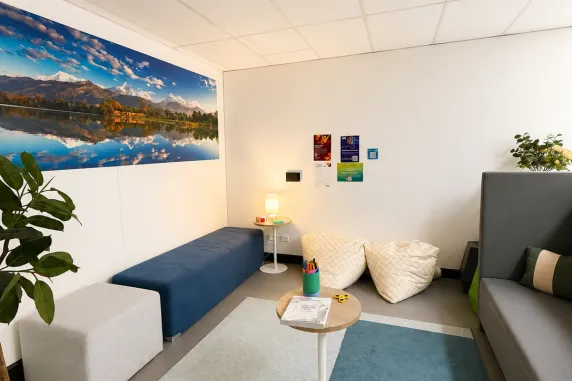
At CDU, we’ve created a range of Sensory and Focus Spaces to support student wellbeing, concentration, and inclusion.
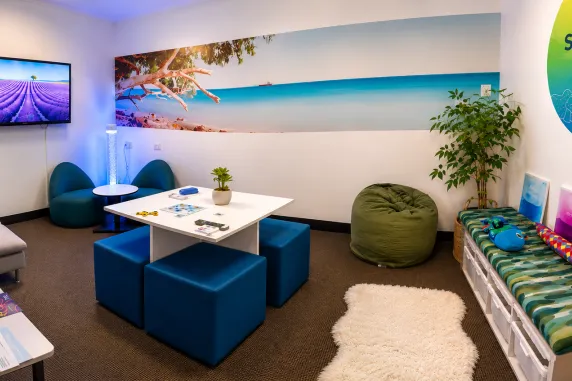
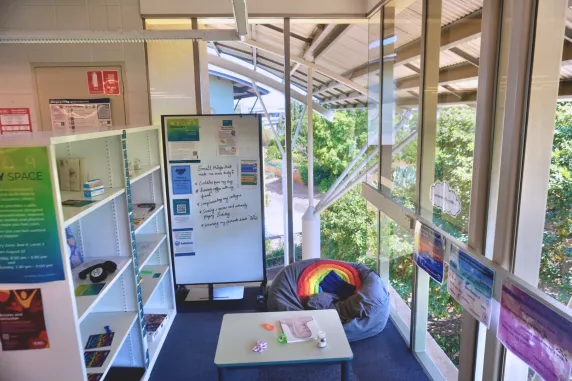
These spaces provide calm, comfortable environments where you can take a break, refocus, or simply enjoy a quiet moment.
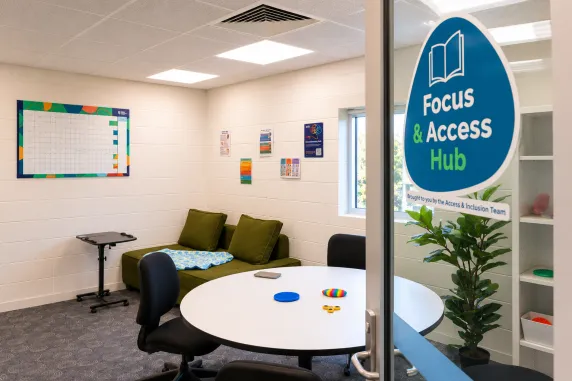
Each space offers different sensory or accessibility features such as gentle lighting, textures, assistive technology, and ergonomic furniture to help you feel relaxed, centred, and focused.
Our Spaces
Neurodiversity Hub
A virtual hub offering online resources, peer connections, and wellbeing tools for neurodiverse students and allies.
Casuarina Campus
- Focus & Access Hub – Library, Level 3
An accessible and ergonomic space featuring assistive technology (AT) and ergonomic furniture, designed to support comfort, focus, and inclusion. - Sensory Zone – Library, Level 3
A calm area within the library to help you reset and refocus. - Sensory Space – Blue 5 (Room 1.41)
A dedicated multi-sensory room designed for relaxation and sensory regulation (student card access). Sensory Room – Blue 2 (Room 1.20)
A calm sensory space located in the Gurinbey centreMonday to Friday: 8.30 am - 4.00 pm
Danala | Education and Community Precinct
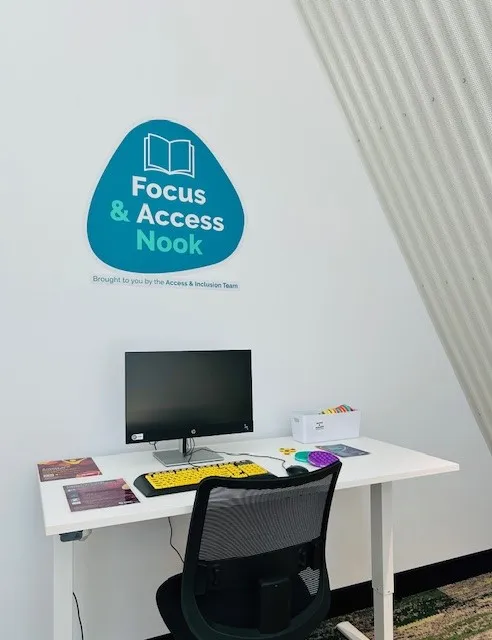
- Focus & Access Nook – Library - Level 2
A smaller accessible space equipped with ergonomic furniture and AT tools for focused study or quiet reflection. Damulgurra – Level 2 – Room 2.15
A dedicated multi-sensory room designed for relaxation and sensory regulation (student card access).Monday to Friday: 8.30 am - 4.00 pm
Sydney Campus
Sensory Room– Level 8
A sensory space open to all students.
Monday to Friday: 8.30 am - 4.00 pm
Explore our spaces

Designing your space
This short video shows you simple ways to engage your senses: sight, touch, sound, and smell, using everyday items and inspiration from your surroundings. Having your own sensory space doesn’t have to be expensive and can be implemented using simple everyday items.
CDU Wellbeing Support Line
The CDU Wellbeing Support Line is available 24 hours if you need to speak with someone urgently.
Ph: 1300 933 393
SMS: 0488884144
Assistive technology and equipment
All CDU students can access a range of assistive technology tools, including Read&Write. Students registered with Access & Inclusion may also be able to access additional assistive software, equipment, ergonomic tools, and individualised technology supports based on their needs.
You can discuss your assistive technology requirements with the team as part of your Access Plan process.
Software tools
- Read&Write – literacy and study support software, available to all students through the Student Portal
- Grammarly Premium – available to all students via the Student Portal
- Additional software or tools can be explored to meet your personal learning needs in consultation with your Access and Inclusion Advisor
Equipment and physical supports
Ergonomic chairs, keyboards, and mice for on-campus use
Students who require ergonomic furniture or assistive equipment, such as keyboards and mice, for on-campus use can contact the Access and Inclusion team. We can assess individual needs and arrange suitable equipment.
Mobility Scooter Access at Danala Campus
Charles Darwin University (CDU) provides mobility scooters for students with disabilities to help them move around the Danala campus more easily.
How to Book a Mobility Scooter:
- Contact the Access and Inclusion team at CDU.
- You will need to attend a meeting with the team to discuss your needs.
- Provide medical documentation confirming your requirement for mobility assistance.
- After approval, the team will guide you on how to book and use the scooter on campus.
This service is designed to ensure students with mobility challenges can access all areas of the university comfortably and safely.
Specialised Software or Equipment for Work-Integrated Learning
Some courses or placements may require specific software or equipment. Your Access and Inclusion Advisor can help plan these adjustments and coordinate with placement providers.
It’s important to allow enough time to arrange any workplace adjustments to ensure your learning requirements are fully supported.
Windows built-in
Vision
- Contrast: Customise the colour of your screen. How to Use.
- Soundscape: Experience maps in 3D sound. Provides sound cues as you walk to guide your experience. For example, receive a sound cue when you walk past Kmart. How to Use.
- Narrator: Screen reader. How to Use.
- Magnifier: Enlarges words and images. How to Use.
Hearing
- Subtitles: Subtitles for PowerPoint presentations. How to Use.
- Microsoft Stream Captions: Use Microsoft Stream to create videos with auto-generated captions. How to Use.
Learning
- Focus Assist: Customise notifications and alerts to minimise distractions. How to Use.
- Reading View: Clear distracting content from webpages to stay focused on what you want to read. How to Use.
- Text suggestions: Text prediction for writing sentences and words. How to Use.
- Immersive Reader: Immersive reader reads words aloud with simultaneous highlighting. How to Use.
- Office Lens: Transforms text on a printed page into searchable and editable digital content. How to Use.
- Editor: Editor provides advanced proofing and editing service. The editor makes suggestions to help you improve your writing. How to Use.
- Researcher: Helps you find and cite reliable sources and content. How to Use.
Input and Control
- Dictate: Speech recognition. How to Use.
- On Screen Keyboard: Type using a mouse or other pointing device, like a trackball or joystick. How to Use.
- Eye Control: Windows 10 offers built-in support for eye control (eye tracking hardware required). How to Use.
Apple Mac built in
Vision
- VoiceOver: Screen reader which also gives you helpful hints along the way. How to Use.
- Audio Descriptions: Watch movies on your Mac, with detailed audio descriptions of every scene. Movies with audio descriptions available will have AD icon next to it in iTunes.
- VoiceOver and Braille support: Voiceover screen reader provides plug and play support for refreshable braille displays. How to Use.
- Zoom: Magnifier that lets you enlarge your screen up to 20 times. How to Use.
Hearing
- Screen Flash: Instead of playing an alert sound, your Mac can flash its screen when an app needs your attention.
Learning
- Text to speech: Highlights any text and reads out loud. How to Use.
- Dark Mode: Your contents takes centre screen while toolbars and menus fade into the background so that you can focus on your work. How to Use.
- Word Completion: After typing a few letters Word completion will suggest words to help with word building skills. How to Use.
Input and Control
- Accessibility Keyboard: Gives users with limited mobility advanced typing and navigation ability. How to Use.
- Dictation: Lets you talk where you would like to type. How to Use.
Meeting the inherent requirements of your study
Inherent requirements are the essential components of a course or unit that demonstrate the abilities, knowledge and skills to achieve the core learning outcomes of the course or unit. Reasonable adjustments can be made to enable students to meet these standards.
If you are a prospective or current student and have questions about the inherent requirements of your course, please find your course in the course catalogue and check if there are any inherent requirements.
Confidentiality
Your confidentiality is protected under CDU’s Privacy and Confidentiality Policy.
Hidden Disabilities Sunflower program
We’re proud to share that we have joined the Hidden Disabilities Sunflowerprogram, a globally recognised initiative that helps raise awareness of non-visible disabilities and encourages greater understanding and support in everyday spaces.
The Sunflower symbol allows individuals with a hidden disability to discreetly indicate that they may need additional time, patience, or assistance while navigating services and public environments. By wearing a Sunflower lanyard, pin or sticker, people can voluntarily signal that they may benefit from extra understanding without needing to explain their condition.
Together, this small symbol helps make the invisible visible and contributes to creating a more inclusive and supportive campus environment for everyone.